WordPress Management in AdminBolt: A Walkthrough of the Module
AdminBolt's WordPress module is native to the panel rather than wrapped around a third-party installer. It exposes two sidebar entries, Install WordPress and Manage WordPress. Behind those entries sits a 5-step provisioning wizard, an asynchronous installer with named progress stages, a list view of the installs it created, and a per-site detail view organized into four tabs: Overview, Plugins, Themes, and Posts.
This article walks through the module screen by screen. Each section pairs the actual UI with a short note on why the design choice matters when you are running customer WordPress installs in production, the kind of detail that shows up in support tickets, security reviews, and density planning rather than in a feature comparison sheet.
The point of the walkthrough is not to claim AdminBolt does something nobody else does. It is to show, with screenshots, exactly what a customer or a support engineer sees, what each control does, and what to expect when an install runs end to end.
What AdminBolt's WordPress module covers
The module handles the full lifecycle of a WordPress install on a hosting account: provisioning (install into a chosen domain and path), day-to-day operations (login, content, plugins, themes), and a clean uninstall that removes both files and database state together.
WordPress has its own state model: a database, a wp-config.php, a salts file, a plugin directory, a themes directory, and a content directory. Any panel that only manages the filesystem will eventually leave orphaned tables, stale .htaccess rules, or broken cron jobs behind. Treating WordPress as a managed application rather than a pile of PHP files is the difference between a one-click uninstall that actually works and a steady drip of "I can't install WordPress at this path" tickets.
Two entry points: Install vs Manage
The WordPress section in the sidebar splits into two routes. Install WordPress opens the wizard for a new site. Manage WordPress opens the list of installs the wizard created, with a per-site detail view one click away. Keeping the two paths separate makes the panel easier to navigate for both customers and support agents: provisioning and operations are different mental modes and should not share a screen. A customer who is installing is making decisions about a site that does not exist yet; a customer who is managing is responding to something the site is already doing.
The installation wizard (5 steps)
The installer is structured as five sequential steps, each asking one decision. The user moves forward with a Next button and back with a Back button. Nothing is written to disk until the final step. Customers regularly change their minds about a subdirectory path or an admin username midway through, and the wizard has to handle that without leaving state behind.
The five-step pattern is the consensus across modern panels for a reason: each step has one job, the customer can finish a step without holding the whole installer in their head, and the order matches the questions WordPress itself needs answered in roughly the sequence the WordPress installer asks them. Putting validation at the boundary of each step, rather than at submit, means a typo in the admin email gets caught before the customer commits to the install rather than after the panel has spent 20 seconds writing files.
Step 1, Domain & Path
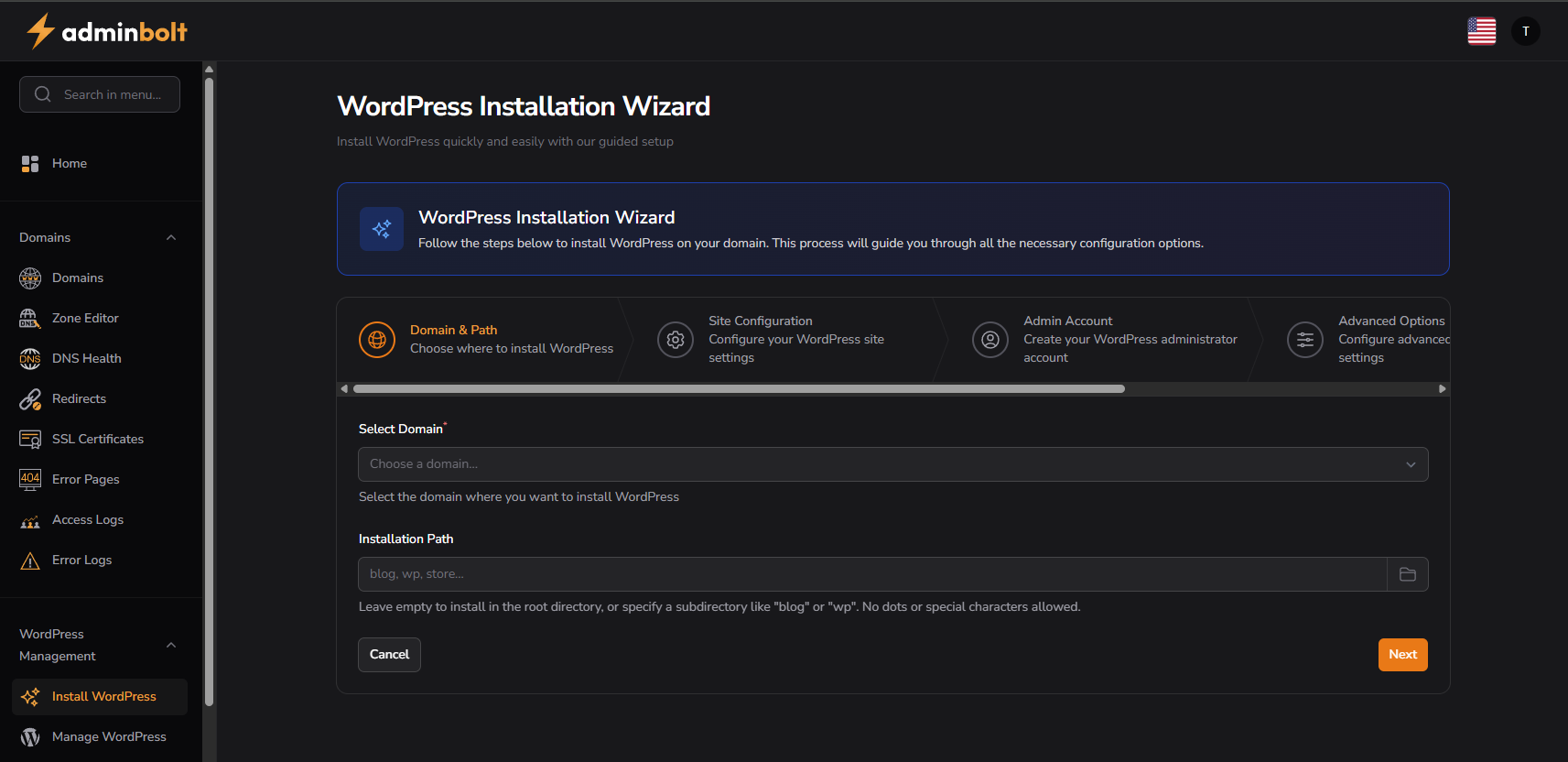
The first step has two fields: a Select Domain dropdown and an Installation Path text field. Leave the path empty to install at the document root, or enter a single segment like blog, wp, or store for a subdirectory install. The field rejects dots and special characters because those almost always indicate a mis-typed URL rather than a real intent.
Why this matters in production: subdirectory installs are how most customers run a marketing site at the root and a WordPress blog one level down, or a separate documentation site under /docs. Validating the path string at step 1 prevents the most common installer failure, an install attempted into a path that is not a valid directory name and fails three stages later with an opaque filesystem error. The earlier the validation, the cleaner the recovery: catching the error in step 1 means no files written, no database created, no rollback needed.
Step 2, Site Configuration
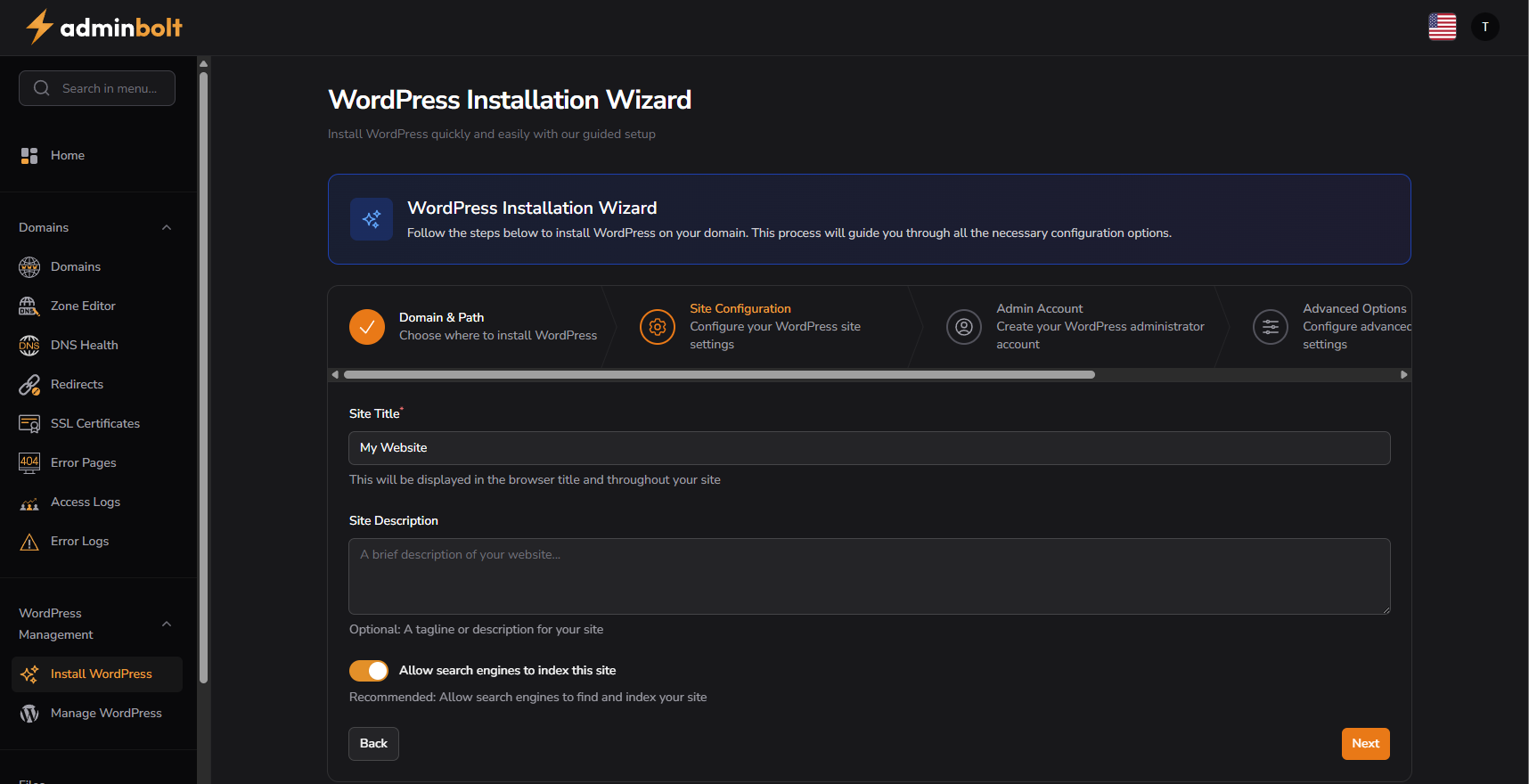
Three fields: Site Title (defaults to "My Website"), Site Description (optional, blank by default), and an "Allow search engines to index this site" toggle that is on by default. The toggle controls the blog_public option in WordPress, which is the same setting wp-admin exposes under Reading.
The reason indexing defaults to on is that the most common reason a customer's site never ranks is that they shipped with indexing disabled and forgot to re-enable it. The setting is buried two clicks deep in wp-admin and most customers never look at it after install. Defaulting the other way trades a small staging-site convenience for a much larger and more common production problem. Customers who want a staging environment can flip the toggle off explicitly, they know they are building a staging environment; they do not know they accidentally hid their production site from Google for three months.
Step 3, Admin Account
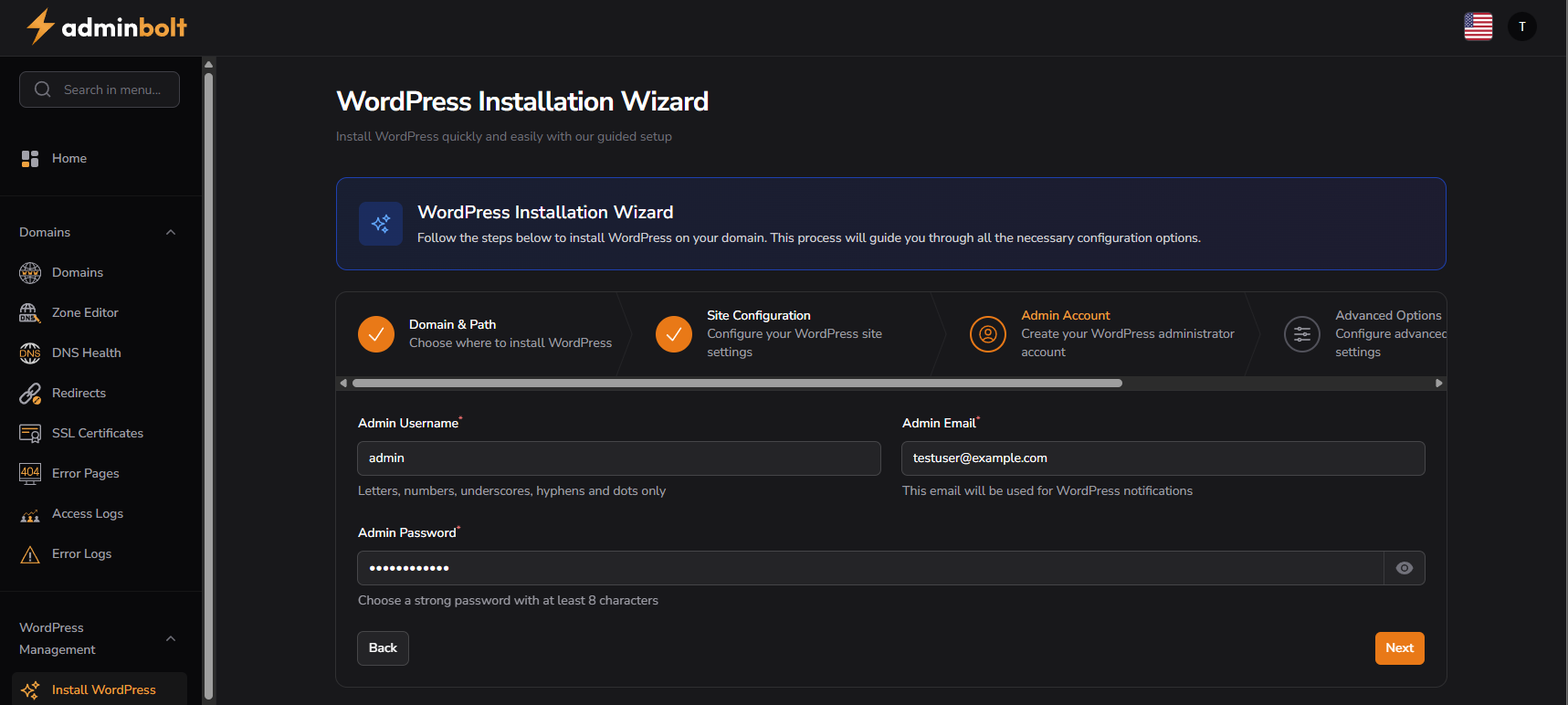
Admin Username accepts letters, numbers, underscores, hyphens, and dots, the same character set WordPress itself accepts. Admin Email is prefilled with an address built from the account username and its primary domain. That is a placeholder, not a guess at where the customer reads mail. Admin Password requires eight or more characters.
The email field decides the recovery path. When a customer forgets their WordPress password later, the reset mail goes wherever this field pointed, so a placeholder nobody reads turns a two-minute reset into a support ticket. The character set on the username field rejects characters WordPress itself would reject during install, which means a username that passes validation in the panel will also pass validation when WordPress itself creates the account.
Step 4, Advanced Options
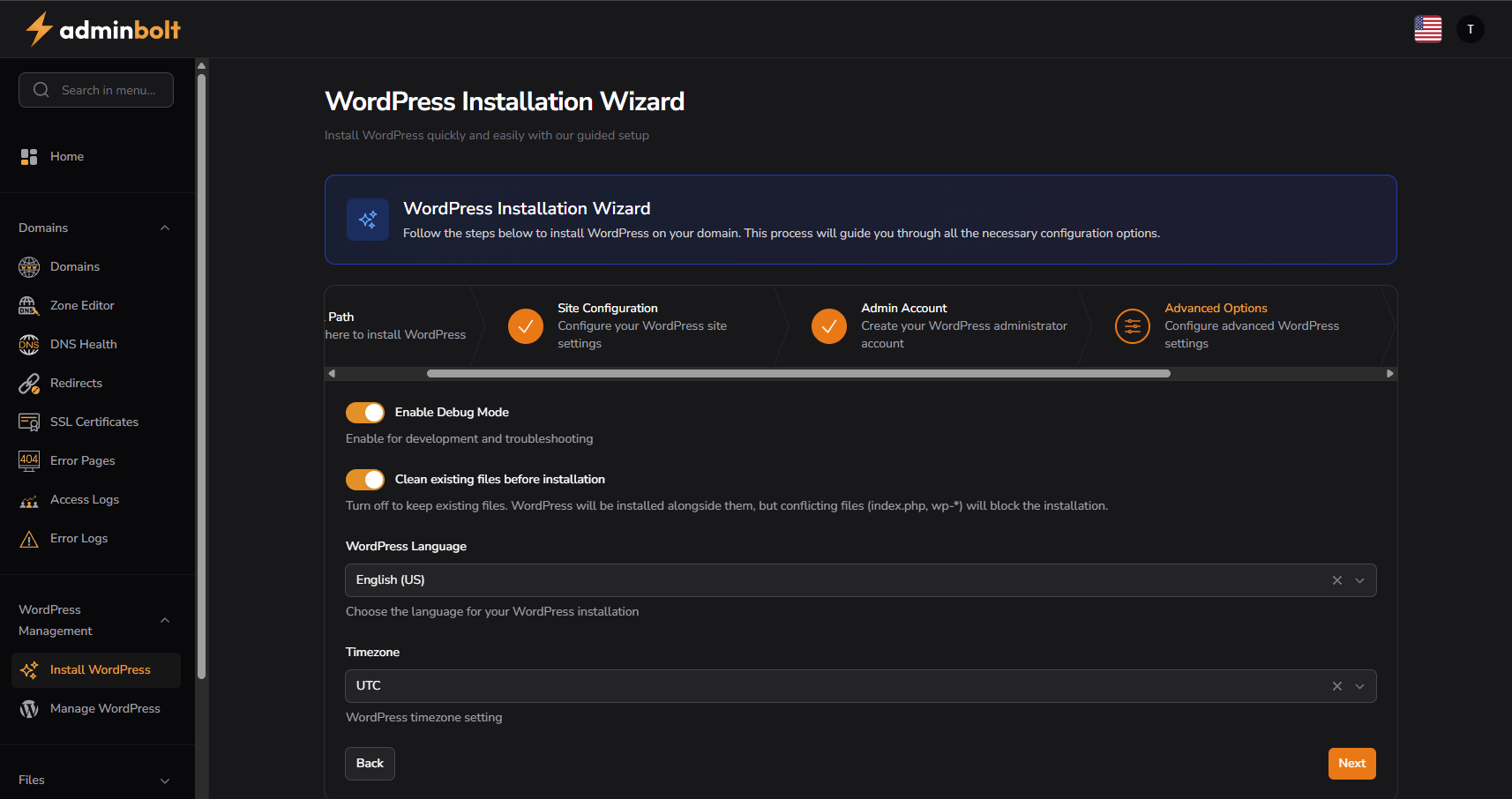
Two toggles and two dropdowns, all four with a working default, so a customer who does not care about any of them can press Next. Enable Debug Mode turns on the WordPress WP_DEBUG output and is off when the wizard opens. Clean existing files before installation is off as well. WordPress Language offers seven choices and starts on English (US). Timezone starts on UTC. The list is searchable, which it needs to be.
The cleanup toggle is the one worth reading twice. Left off, WordPress installs alongside whatever is already in the directory. The install stops if that directory holds index.php, index.html or a file starting with wp-. The warning names the files it found, nothing is written, nothing is deleted and the directory is left exactly as it was. Turned on, the directory is emptied first.
Defaulting that toggle to off is the right trade even though it produces a visible failure. A customer who mistypes a subdirectory and hits a cleanup loses a live site; the recovery is a restore from backup. A customer who hits the conflict warning loses nothing and reads the name of the file in the way. The screenshot has both toggles switched on, which is not how the wizard opens.
Step 5, Review & Install
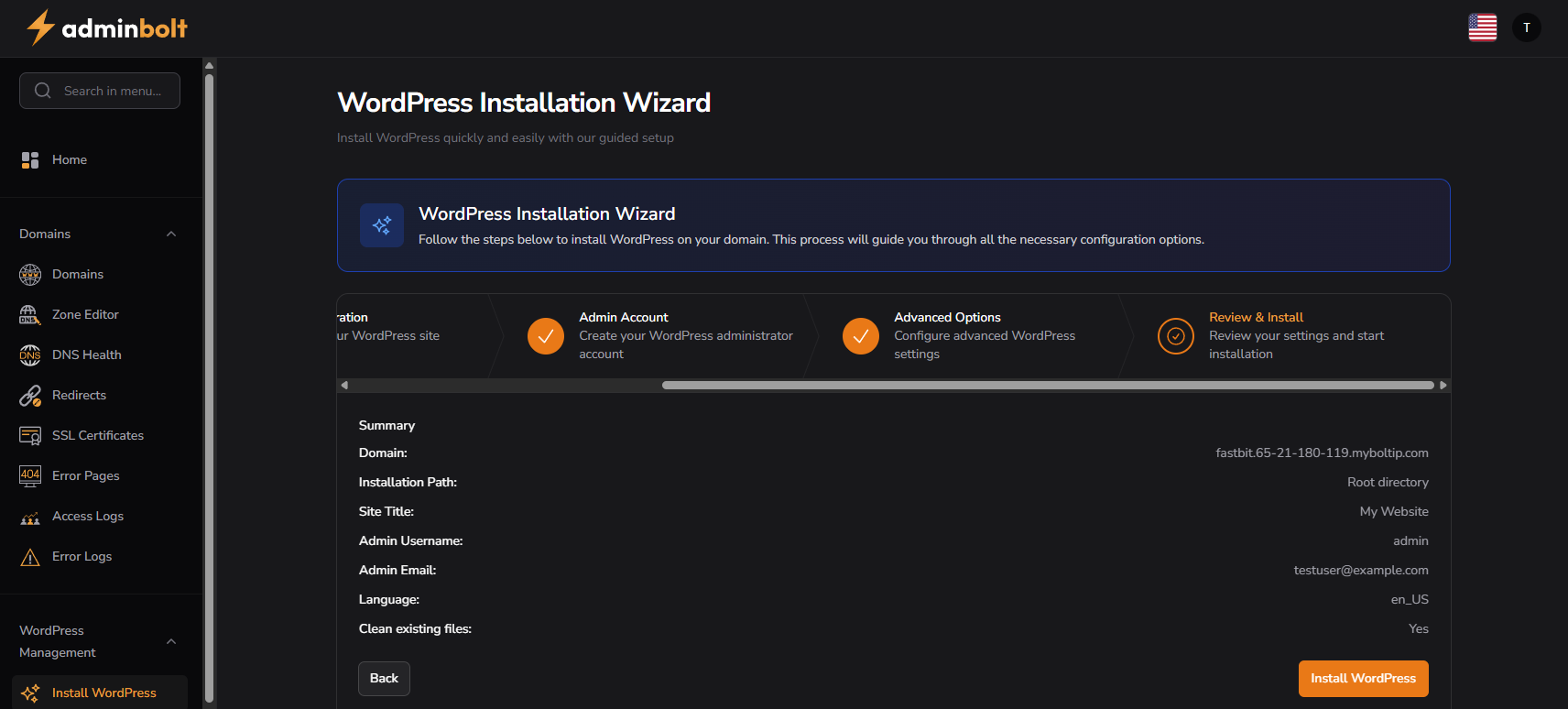
The last step is a summary and one button. It lists the domain, the installation path (Root directory when the field was left empty), the site title, the admin username, the admin email, the language and whether existing files will be cleaned. Back steps out to fix something and the step headers along the top jump to any step already finished. Install WordPress is the first thing in the whole flow that writes anything.
The admin password is not on this screen. The panel does not show it again once the install finishes. Step 3 is the only place it exists, which is why the Admin Email field is worth a second look before you get this far. Once the password is gone, the reset mail is the way back in and it goes wherever that field pointed.
The installer runs on the server
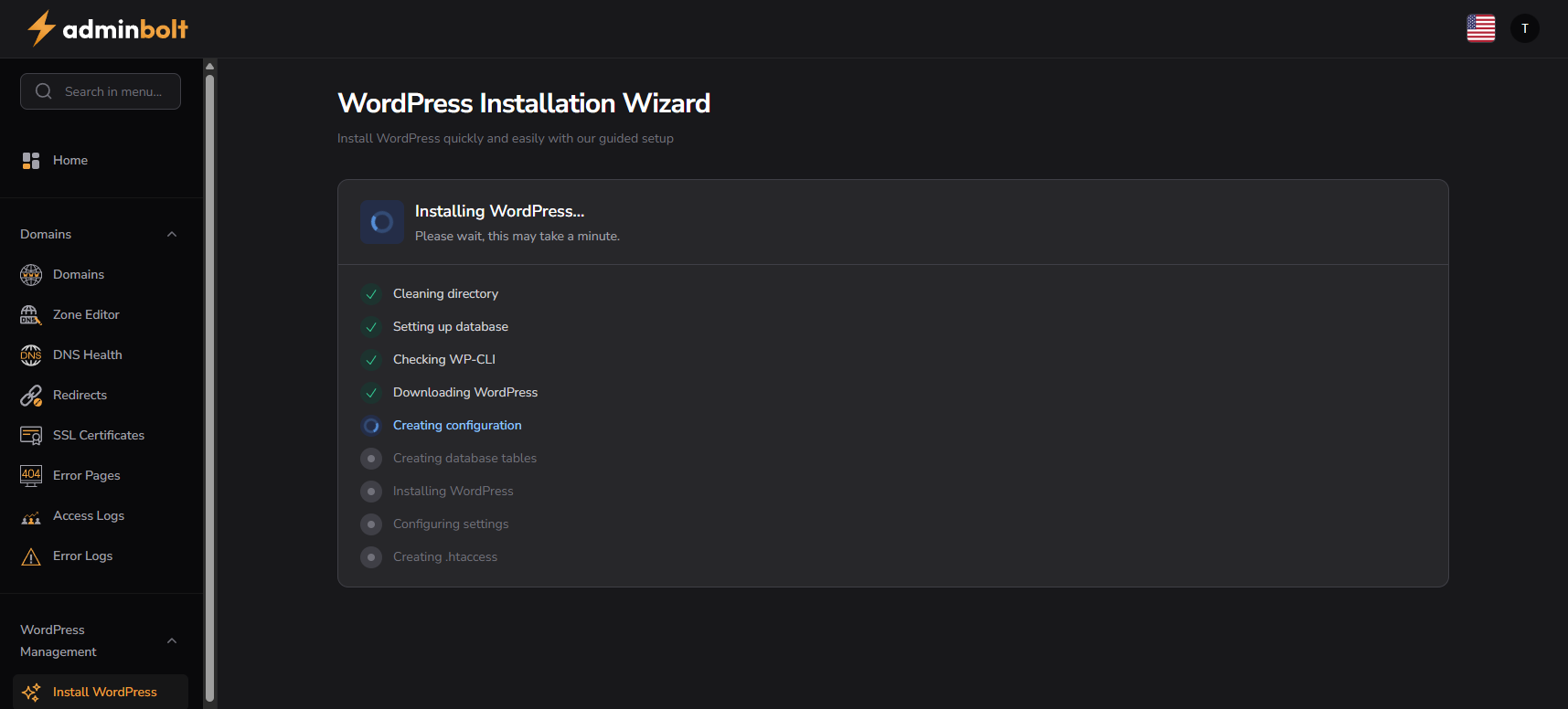
Install WordPress replaces the wizard with a progress list that refreshes itself. Nine named stages tick off in order, from cleaning the directory and setting up the database through to configuring settings and writing .htaccess. A typical install takes about a minute. The database and its user are created along the way, so nothing has to be prepared under Databases first.
The work happens on the server, which is what matters when a customer closes the tab halfway through. The install finishes either way. Only the progress list is tied to the open page, so a customer who navigates away picks the site up under Manage WordPress instead of guessing whether anything happened.
Named stages also change the shape of the support ticket. "It failed" becomes "it stopped at Creating database tables", which is the difference between a diagnosis and a guess.
After the install
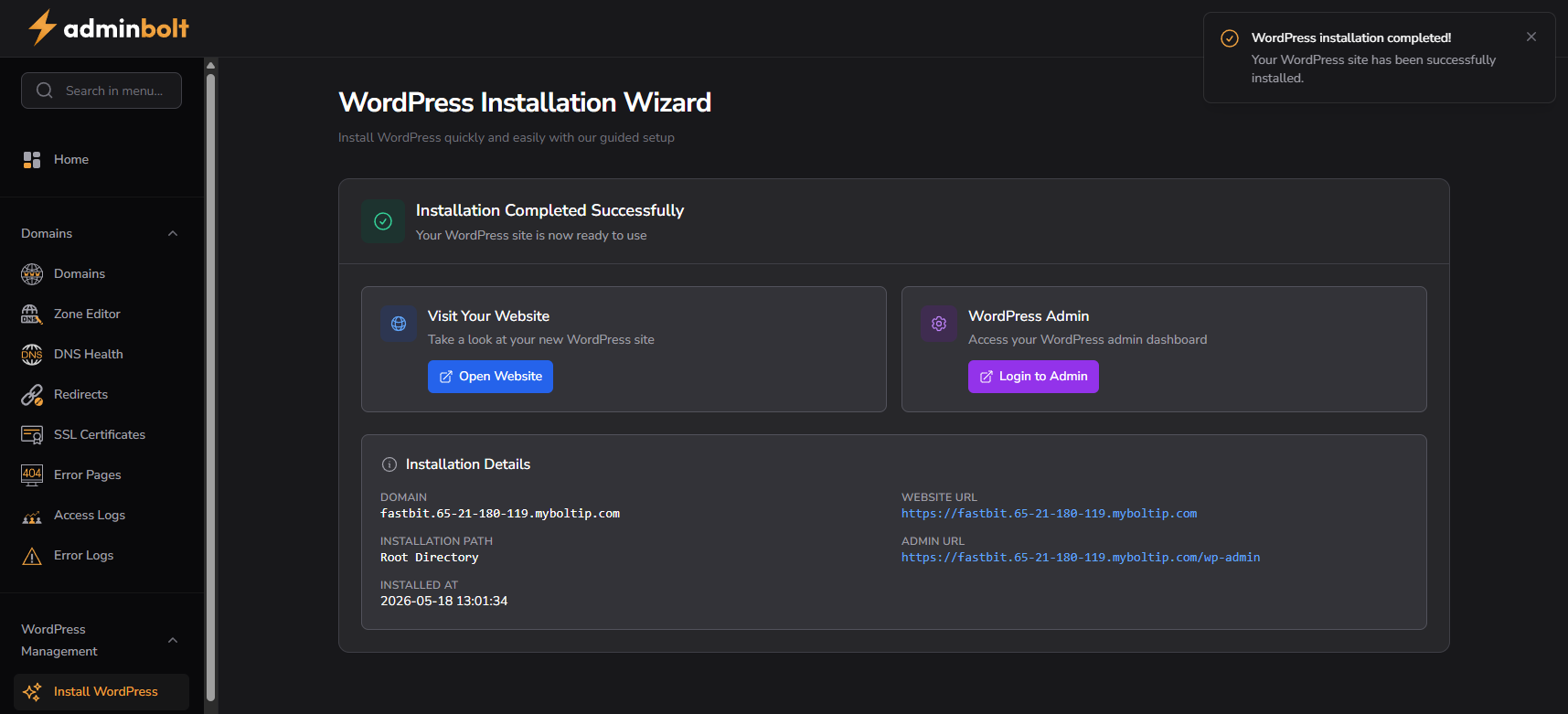
A completion card replaces the progress list, with two actions and a details panel. Open Website opens the site. Login to Admin opens its /wp-admin, where you sign in with the account created in step 3. Installation Details repeats the domain, the installation path, the time the install finished, the site URL and the admin URL, in a form that pastes straight into a ticket or a handover email. Start New Installation sits in the page header and resets the wizard, so a second site does not need a trip back through the sidebar.
Manage WordPress: the list view
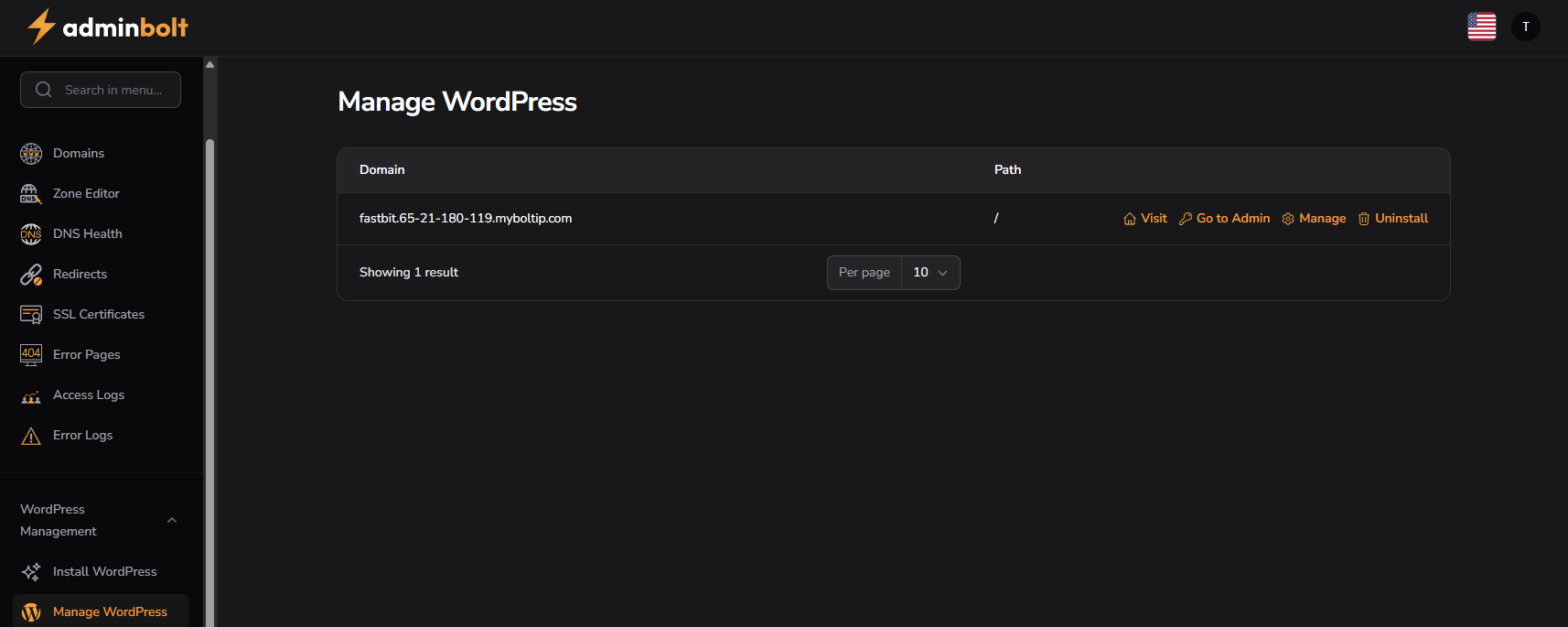
Manage WordPress lists the installations the wizard created, two columns wide: Domain and Path. Each row carries four actions. Visit opens the site, Go to Admin opens its /wp-admin, Manage opens the per-site view and Uninstall removes the installation behind a confirmation that says in plain words what goes: all WordPress files and the database, permanently, with no undo. A per page control sits under the table for accounts running more than a handful of sites.
The uninstall is where treating WordPress as one managed thing pays off. Files and database go together, from the same row that lists the site, in one confirmed action. A cleanup that only removes files leaves the tables behind. Those tables come back months later as a database nobody can identify and nobody dares delete.
The manage view: four tabs
Overview
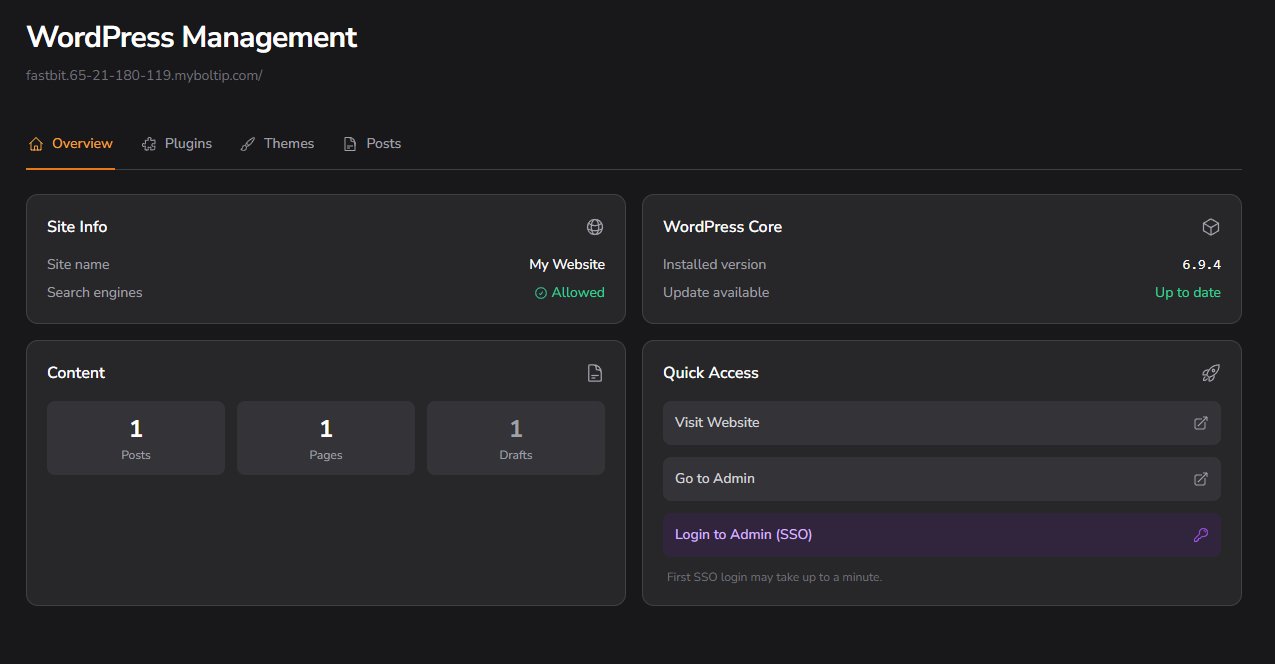
The header names the installation being managed, by domain and path. On an account with three WordPress sites that line is the only thing standing between a change and the wrong site. Four tabs sit under it: Overview, Plugins, Themes and Posts.
Overview is four cards. Site Info gives the site name and whether search engines are allowed, which is where the toggle from step 2 ends up and the quickest answer to "why is my site not in Google". WordPress Core gives the installed version and the update status; when there is an update, an Update Core action appears next to it and asks you to confirm the target version before it runs. Content counts posts, pages and drafts. Quick Access holds Visit Website, Go to Admin and Login to Admin (SSO).
Login to Admin (SSO) saves the most time of the three. It opens wp-admin already signed in, so the account holder gets into their own site without digging out the password they wrote down at step 3. The card notes that the first SSO login may take up to a minute, which is worth reading before you decide the button did nothing.
Plugins and Themes
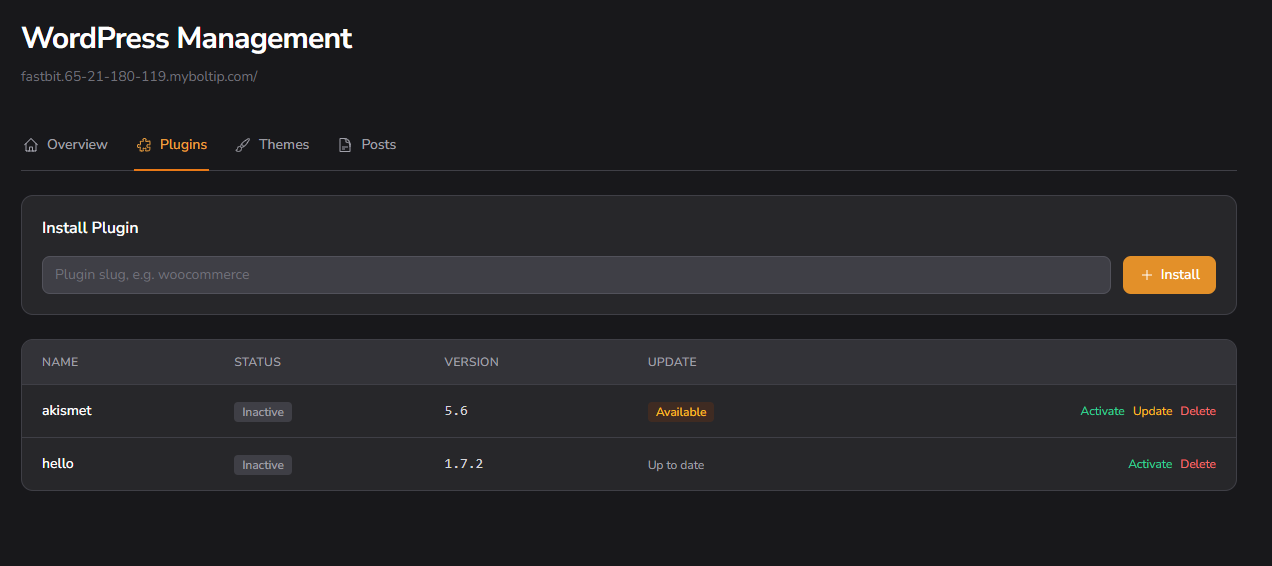
The Plugins tab installs by slug: one field, one Install button. The table below lists Name, Status, Version and Update state. An inactive plugin offers Activate and Delete; an active one offers Deactivate and Delete. Update shows up only on a row whose update state says Available. Delete names the plugin in its confirmation.
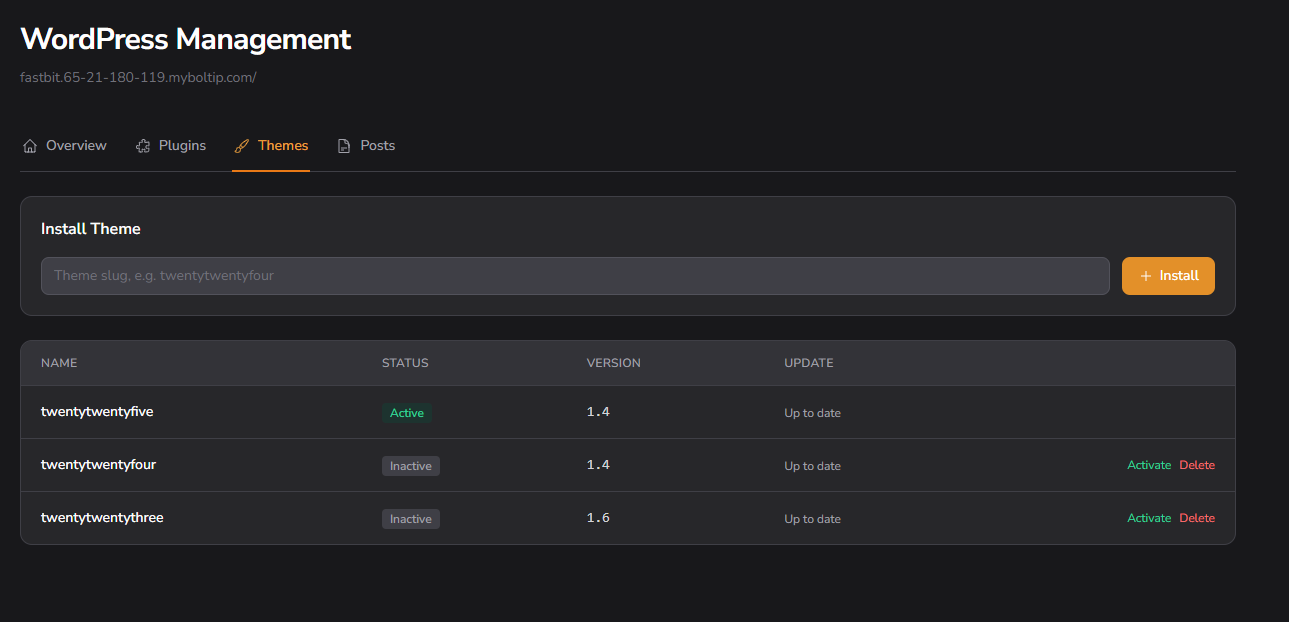
Themes work the same way, with one difference. The active theme cannot be activated again and cannot be deleted while it is the theme running the site, so in the screenshot its row carries no actions at all.
Neither tab is trying to replace the plugin browser in wp-admin. Search, screenshots, ratings and changelogs live there and belong there. What the panel adds is the state, readable at a glance, for an installation nobody is logged into: what is installed, what is active and what is behind. That is the view you want open when a customer reports a white screen after an update.
Posts
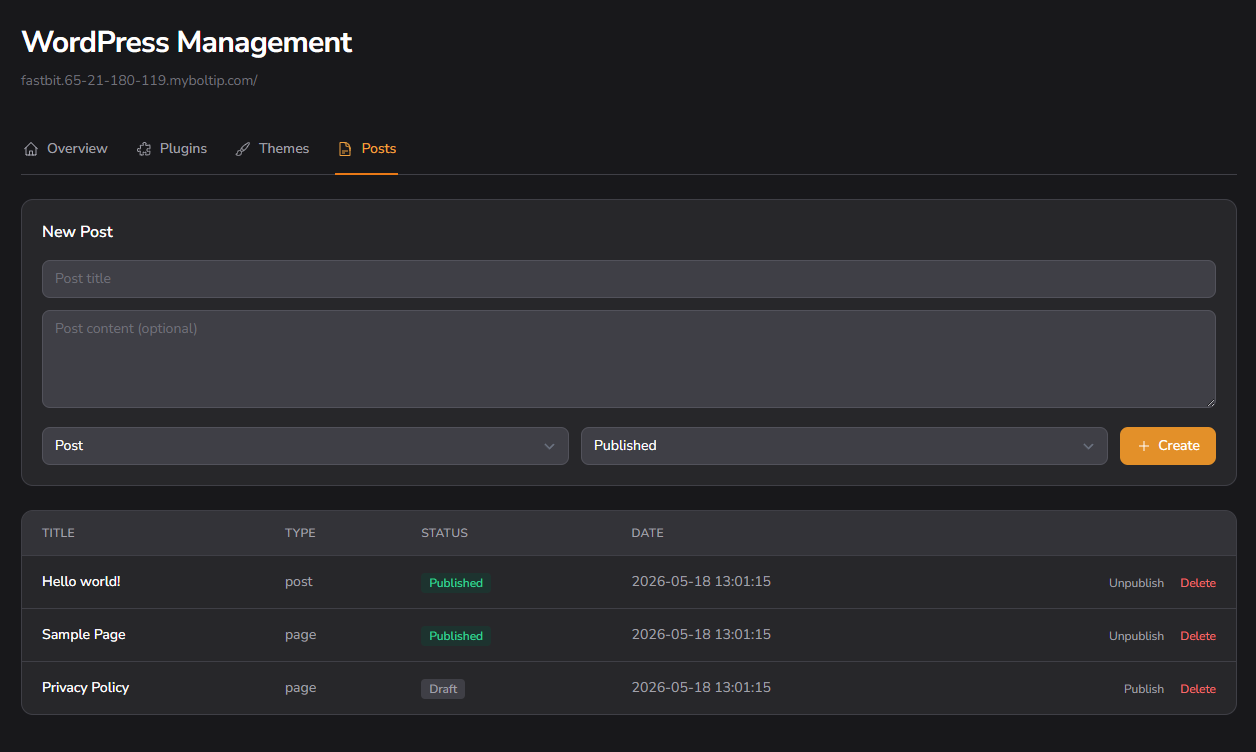
The Posts tab makes a post or a page from a title, optional content and two dropdowns, one for the type and one for whether it goes out published or as a draft. The table lists Title, Type, Status and Date, with Publish or Unpublish on each row depending on where it stands. Delete sits at the end of the row, behind a confirmation.
This is the smallest tab and the one with the clearest limit. It is not an editor. It covers the jobs that do not deserve a login: pulling a page back to draft while it is being rewritten, or clearing the sample post, sample page and privacy policy draft a fresh install starts with.
Where the module fits
The split between the panel and wp-admin is the whole design. Provisioning, uninstall, signed-in access and a readable view of core, plugins and content sit in the panel, because those are the things a hosting provider gets asked about. Writing, editing and anything that needs a preview stay in WordPress, because that is where they are better.
For a hosting provider the result is a shorter list of things a customer cannot do alone. A site goes up in five steps and about a minute. A locked-out admin gets in without a password reset. A removed install leaves nothing behind in the database. Each of those is a support ticket that does not get opened.
The rest of the panel is on the features page. The technical specification covers what a server needs to run it.