Inside bolt-migrate: How cPanel and DirectAdmin Servers Move to AdminBolt
Ask a hosting provider when they plan to leave their old control panel and the answer is usually some version of "after the busy season". It is rarely about the effort of copying files. A production server is years of accumulated state: mailboxes that have to keep receiving during a move, databases with applications connected to them around the clock, DNS zones nobody has audited since setup, a cron job from 2019 that turns out to be load-bearing. Copying is easy. Accounting for all of that, in the right order, with a way back if something surprises you - that is the actual job.
bolt-migrate is how we do that job. It is a single, self-contained tool: drop it onto the server you are leaving, it detects whether the source runs cPanel or DirectAdmin, inventories the accounts and guides the move to AdminBolt end to end - onto a fresh server, or in place on supported cPanel machines. This article is the long tour: what each path is for, what comes across, how the safeguards work and what running it looks like, screen by screen.
Why this tool exists
Control panel pricing has spent years moving in one direction. Per-account licensing means the bill grows with each customer you add, renewals arrive with an increase attached and the features you rely on have a habit of migrating to a higher tier. Most hosting providers we talk to feel no loyalty to their panel. What holds them in place is the migration itself: a weekend of risk, hundreds of customers who might notice, the possibility of a Monday full of tickets. In this industry that pain quietly works as part of the vendor's pricing power - the renewal can climb again because moving still feels harder than paying it.
AdminBolt is the other bet. A flat price per server rather than per account - on a typical VPS that is $20 a month with unlimited accounts and the full feature set included - running on hardware you own. We call it the hosting control panel built for the next decade, which is the kind of sentence any vendor can put on a homepage. The part that has to be earned is quieter: a panel that claims the next decade has to keep winning renewals on merit. Merit only enters the conversation when leaving your current vendor is genuinely possible.
So we built the exit as a product. bolt-migrate answers the question that keeps providers where they are: what happens to my customers when I move. It is also why migrations to AdminBolt are free and run together with our team. The switching cost is the moat that protects the panels we compete with. We could not think of better marketing than draining it. If AdminBolt is worth staying with, that will show month after month. If it ever is not, the hardware was yours all along.
The same thinking shaped the panel itself. AdminBolt deliberately keeps the layout and concepts your customers know from their old panel, so the morning after a migration their muscle memory still works and your support queue stays quiet. A server move is data plus habits: bolt-migrate carries the data while the panel's familiarity carries the habits.
One expectation to set before the tour, so nobody reads twenty minutes and then goes looking for a download button. Today our migration team runs bolt-migrate with you: the migration is free and a real person from our side stays reachable throughout the run, so a question in the middle of the window gets answered the same window. A self-service release you download and drive yourself is coming; if you want to know the day it lands, leave your address on the converter page. The rest of this article is what the intent above looks like once it turns into software.
Two ways out
The first decision in a migration is not technical. Do you want to keep the hardware, or is this the moment you also move to a better machine?
Migration is for the second case: your accounts move from cPanel or DirectAdmin to a clean AdminBolt server. This path does not convert or remove the source panel. The source keeps serving while the main copy runs and remains available afterwards, so the fallback question answers itself. You verify the result on the new machine before the final cutover, and the cutover gets a planned quiet window of its own, because the transfer is a copy rather than a continuous sync. Whenever a second server is an option, this is the path we recommend.
Conversion replaces cPanel with AdminBolt on the same hardware and the same IP, and that sameness is its superpower: DNS stays exactly where it is, mail keeps the reputation of the address it already sends from and there is no second server to rent. AdminBolt installs alongside cPanel while cPanel keeps serving, accounts are recreated, services hand over and cPanel is removed only at the very end, after an explicit confirmation. Until then you keep options: pause, roll the recorded changes back or finish later. A conversion asks for two things up front - a full backup you have tested and a planned maintenance window - because that is how an operation of this size should be run on a production machine. It needs AlmaLinux 9 and is a cPanel-only path for now; DirectAdmin servers take the migration route.
There is a third scenario hiding inside the first one: consolidation. Imports are additive, so you can bring several source servers - cPanel, DirectAdmin or a mix - into one AdminBolt target one after another. Existing target accounts are not part of the import, and a pre-flight check warns about account or database name collisions. AdminBolt is priced flat per server, so folding three half-empty boxes into one well-used machine can pay for the whole exercise on its own.
Console, browser or demo
Open the tool and it asks how you want to work:
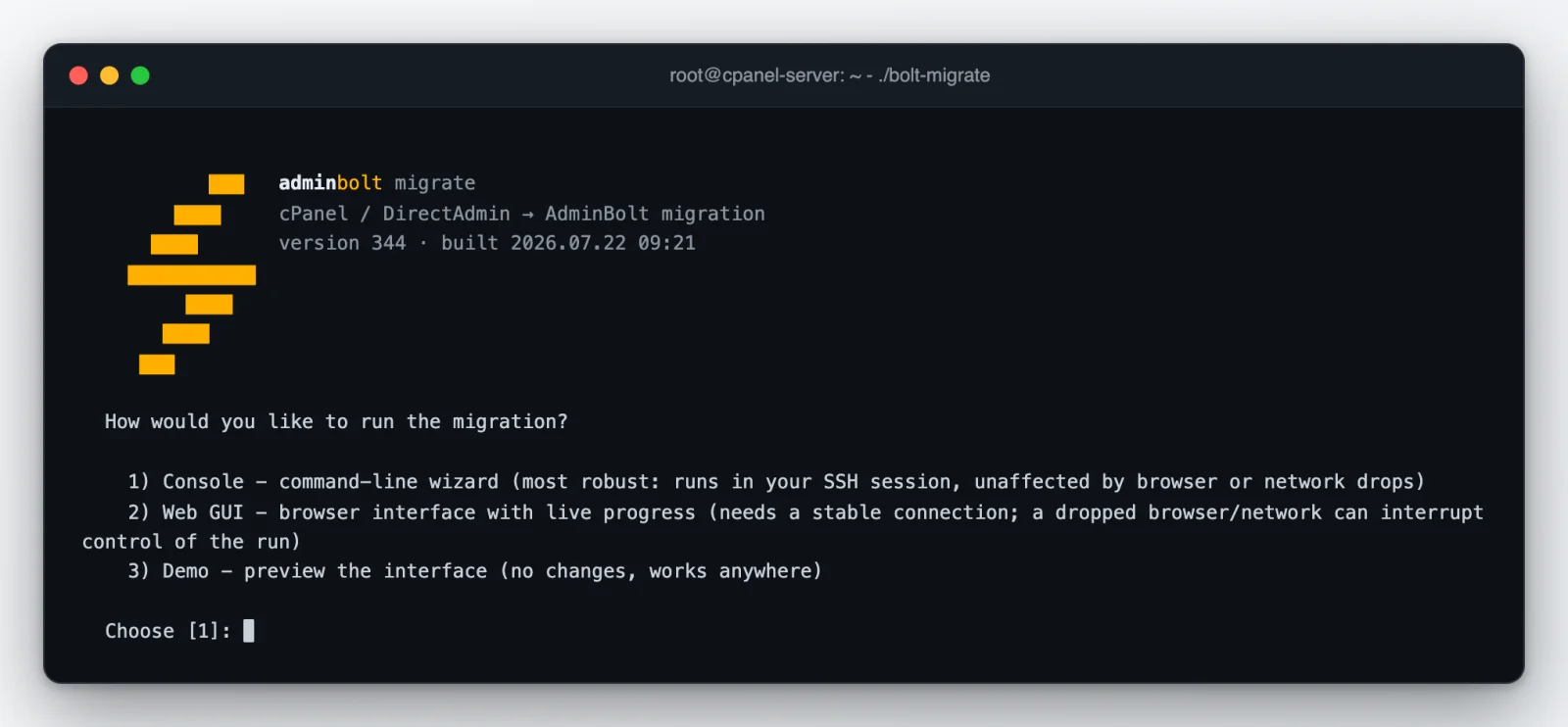
The console wizard runs in your terminal. For a long run it is worth using a durable terminal session, so a dropped connection does not take the process with it. The web GUI offers the same migration paths in a browser and streams progress as the run continues; if the tab closes, reopening the private link restores the view while the process is alive. The choice is comfort, not capability.
The third option is demo mode. It plays the interface against sample data, without needing a source panel and without making migration changes - any spare Linux box will do. The point is rehearsal: walk the questions, the summaries and the confirmation gates before the day you use the tool on a server that matters. The run screenshots in this article come from that demo.
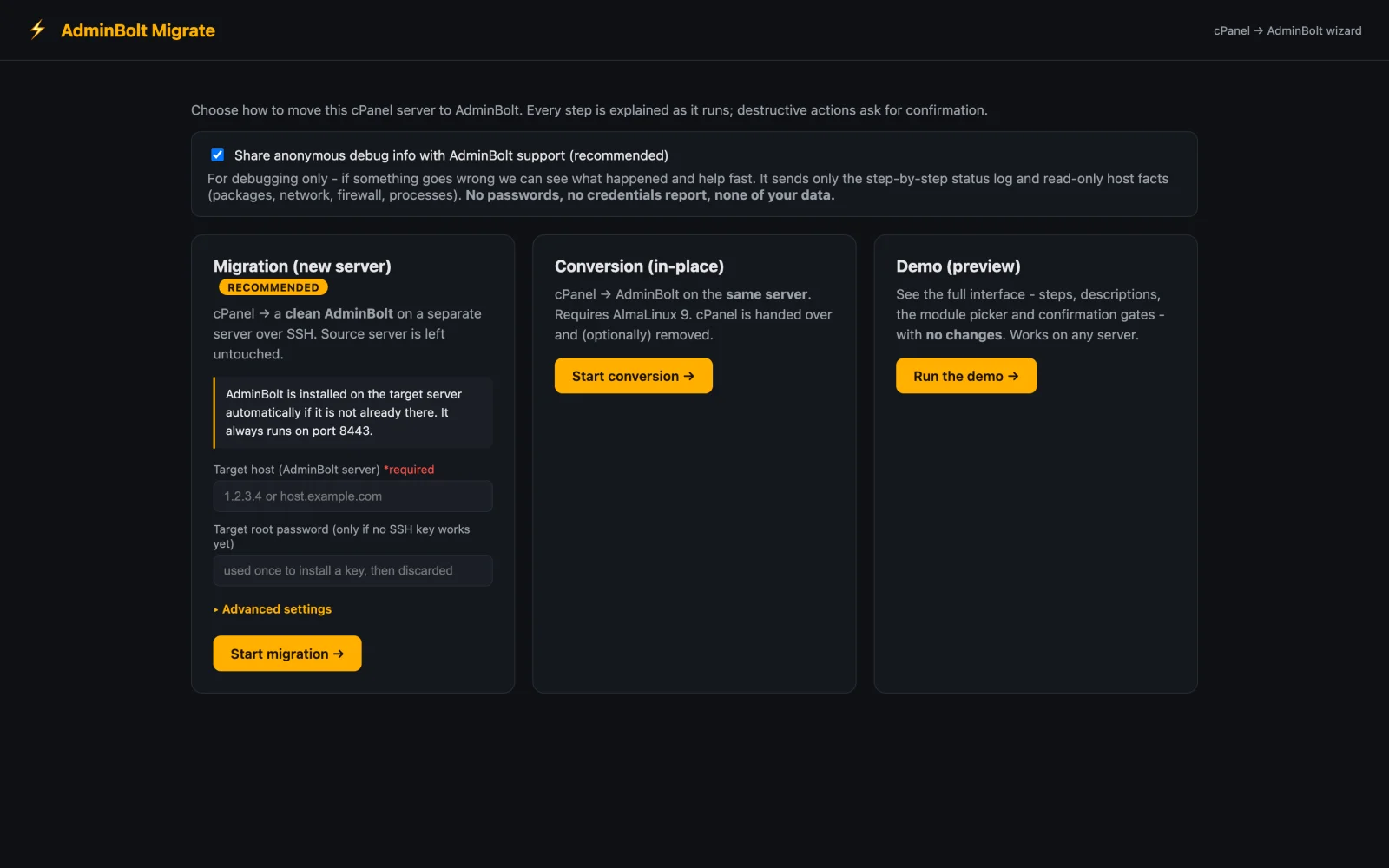
Whichever frontend you pick, the wizard adapts to the detected source panel and offers only the paths that apply to it. A dry run is also available: it inventories the source and builds the full review without installing AdminBolt, importing accounts or starting a cutover.
Why the account inventory matters
The difficult part of a panel migration is not copying bytes. It is building a complete inventory of supported resources and keeping the relationships between them intact. A domain belongs to an account, a mailbox belongs to a domain and a database user needs the right privileges. Missing one relationship can leave a migration looking complete while an application or login is broken.
bolt-migrate builds that inventory per account and presents it for review before the move continues. The list includes domains with their PHP versions, databases with users and privileges, mailboxes, forwarders, autoresponders, mailing lists, FTP accounts, DNS records, cron jobs, SSL certificates and redirects. AdminBolt then recreates those resources using the same product rules as a newly created account, so a migrated account is a first-class account, not an approximation.
This approach also produces a review trail worth having. The run shows progress and any failures account by account, and the final report summarizes what was created, what needs attention and which credentials were regenerated - the level of detail a real handover needs.
A migration, step by step
The cross-server path, in the order it runs:
Pre-flight. The tool checks that the source and target meet the requirements for the selected path. It also checks capacity and connectivity before asking you to continue.
Export and review. Each account is read into the inventory. Suspended accounts arrive on the target still suspended. The stage ends at the screen that matters most: a summary of what was found, account by account, followed by a plain-language list of what will change and what will stay. The run stops there until you have read it and said continue.
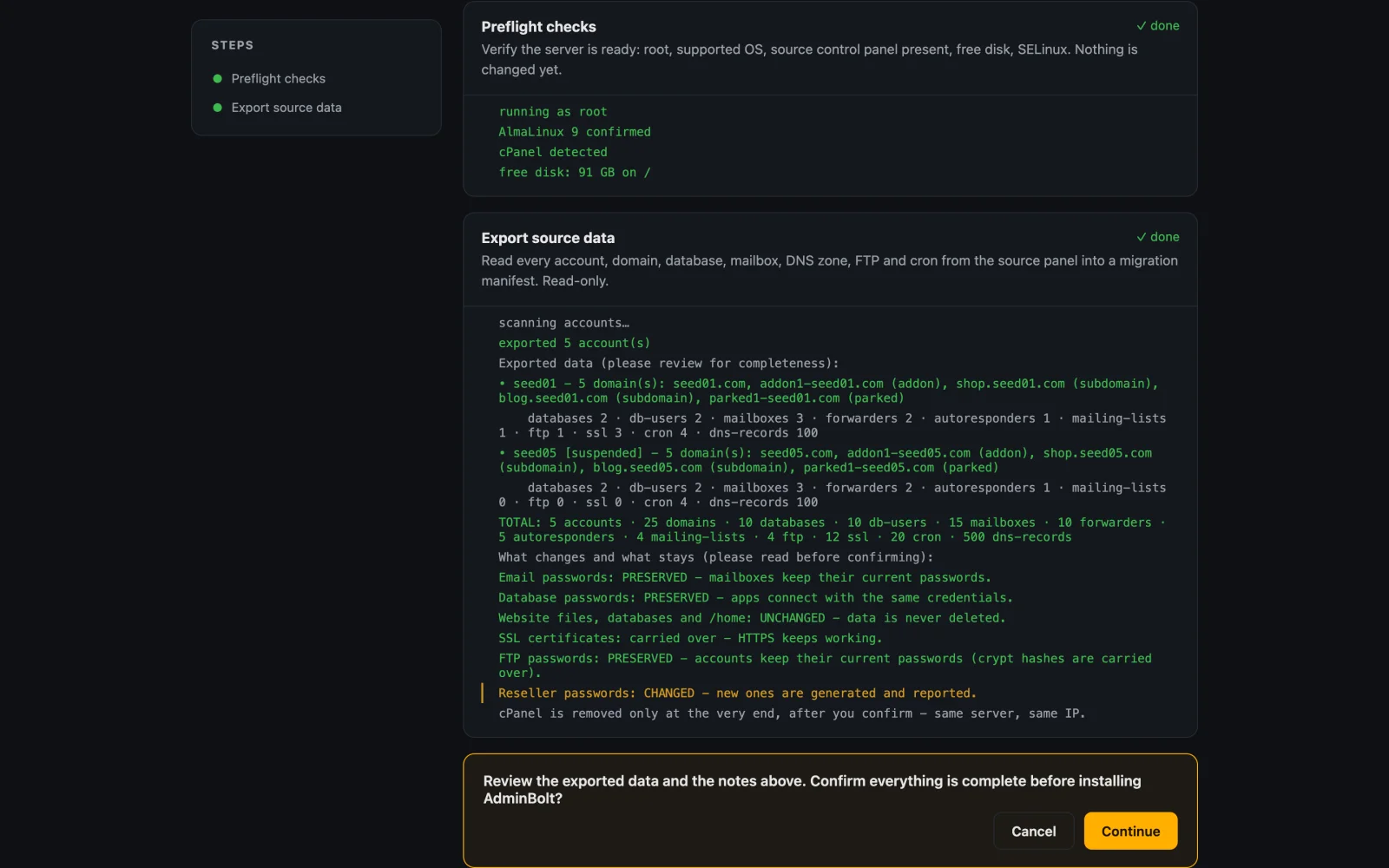
Target preparation. If the target server is empty, AdminBolt is installed for you. Shared plans and feature lists are prepared, then accounts and reseller ownership are recreated in the order they require. If the target already hosts accounts, the collision check has already highlighted conflicting names.
PHP preparation. The tool reviews the PHP versions used by the exported sites and prepares supported equivalents on the target. A version too old to install gets mapped to the closest supported release, shown during the run rather than decided silently.
Per-account creation. AdminBolt recreates the account resources. You follow the result account by account, with anything that needs attention reported against the affected account.
A pause, if anything failed. On the cross-server path, a failed account creation triggers a review gate before data transfer and DNS cutover. You decide how to proceed with the results in front of you.
Data transfer. Website files, stored mail and databases are copied to the new server while the source keeps serving. The copy is a point in time rather than a continuous sync, so changes made after a piece of data has been copied - a new order in a shop, a fresh email - do not move on their own, and DNS propagation briefly splits traffic after cutover. This is what the planned quiet window is for: a change freeze where practical, a verification pass afterwards and a cutover our team plans with you.
Credential continuity. The tool preserves compatible existing credentials, which is the difference between customers noticing a migration and customers hearing about it later. The details get their own section below.
DNS cutover. The migrated zones receive the public DKIM records the new server needs, and address records switch to the target after verification. If your DNS lives elsewhere, you can keep the original addresses and handle the final switch separately. Panel-specific service records are filtered out rather than copied blindly.
The report. The report summarizes each account, flags anything that failed, gives extra prominence to any database whose contents did not transfer and lists the regenerated credentials to hand over. It is the document you work through afterwards, and the one you show whoever asks what exactly happened.
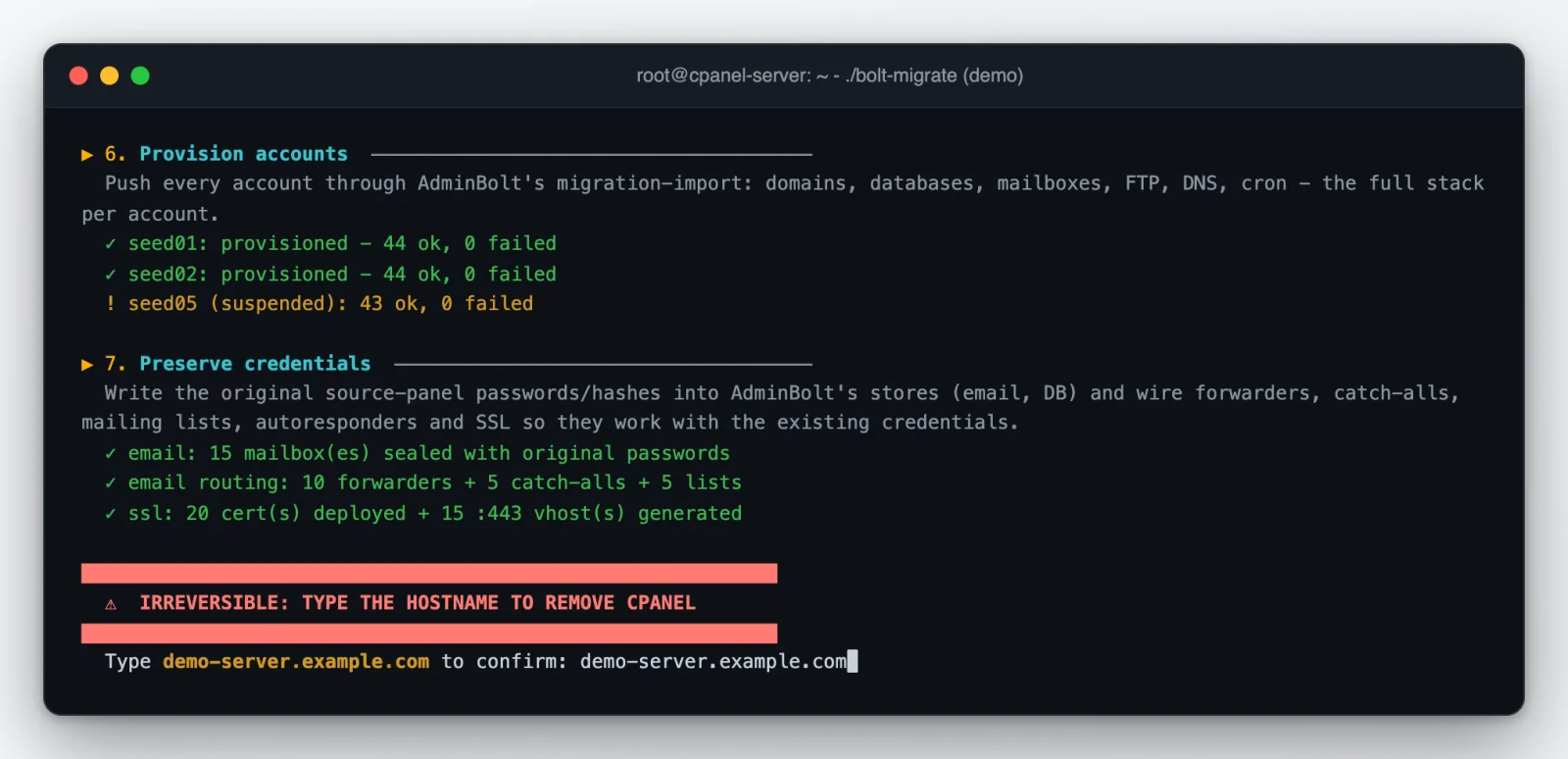
The same run, seen from the console:
A conversion, in an order you might not expect
The in-place path currently means converting a cPanel server to AdminBolt, and its opening move sets the tone: AdminBolt installs on the live server, next to cPanel, while cPanel keeps serving every site. The heavy stages - installation, export, preparation - all run at your leisure with the production workload carrying on, and the conversion is still easy to walk away from at this point.
Before any of that, the conversion asks you to type the words I HAVE A BACKUP. We made it a sentence you type rather than a box you tick because that is the professional baseline for reshaping a production server: a verified backup behind you, a planned window ahead of you. The built-in rollback exists for changing your mind; the backup is what covers everything else, and insisting on it is part of taking your server seriously.
A conversion also inherits whatever third-party software the server accumulated over the years. bolt-migrate detects recognized add-ons - security suites, backup tools, web server replacements - and records your decision for each: integrate with AdminBolt, keep as it is or remove. Those choices become part of the migration plan, and our team walks them with you so commercial licenses and integrations land correctly on the new panel.
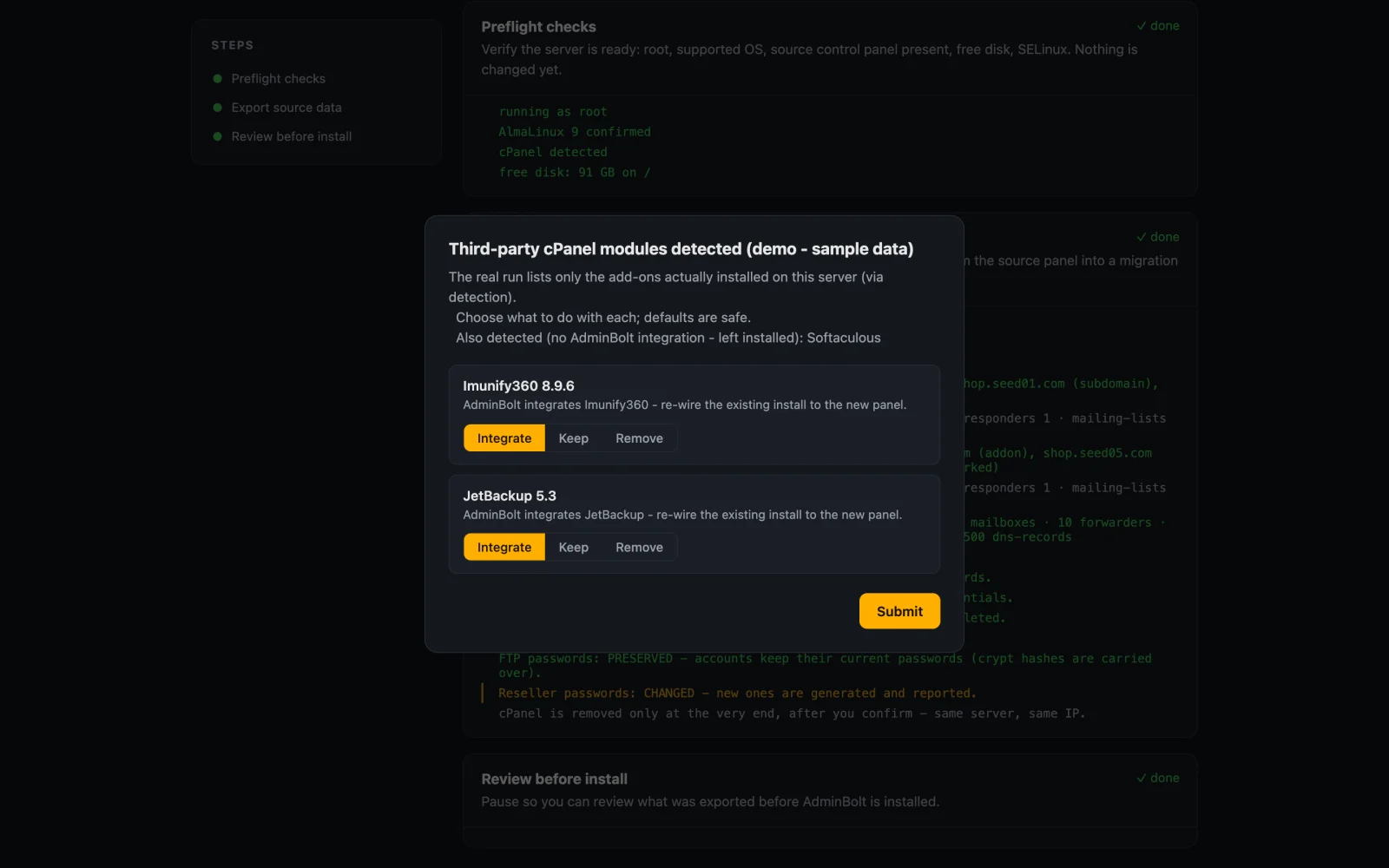
The switchover itself comes near the end and is the one part of a conversion to schedule: it covers the handover, account recreation and credential work, and it scales with the size of the server. By the time it starts, everything long has already happened while cPanel was still serving, so the window you plan is for the switchover alone. Our team sizes it for your data as part of planning the move.
After the cutover, a health check reviews the new panel, sites and mail before the removal option is even presented. Then you pick the ending: remove cPanel now if the checks are green, roll the recorded changes back, or exit and decide later - the tool finds the unfinished conversion on its next start and offers the same choices again, so "let it run over the weekend first" is a legitimate strategy rather than a hack. Removal is gated one last time by typing the server's hostname:
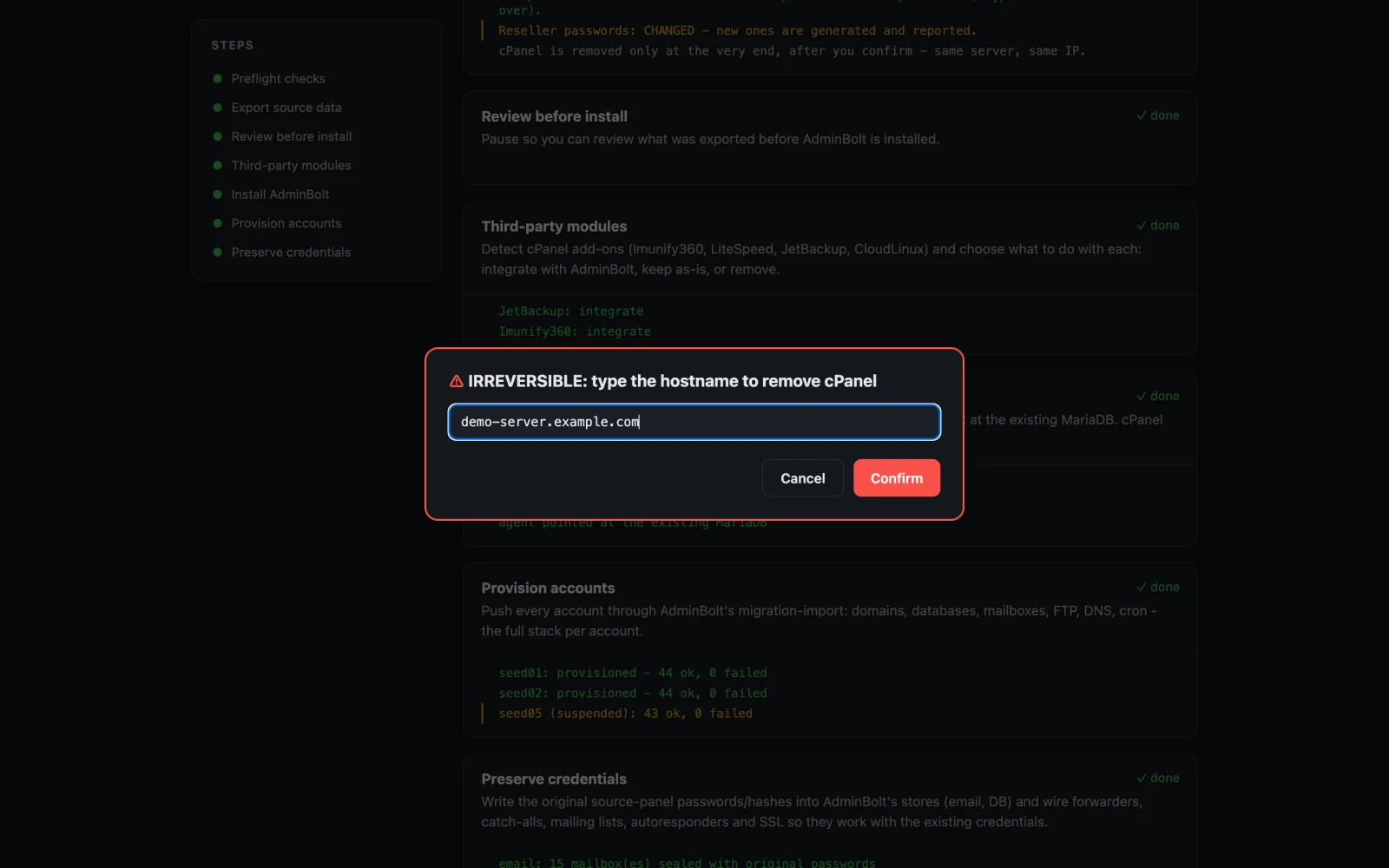
Both the conversion and the removal are designed to preserve customer data: databases and home directories are not what these steps delete. The backup you confirmed at the start stands behind everything a design cannot promise.
The password problem
A migrated server can have hundreds of credentials across mailboxes, databases, FTP accounts and customer logins, and the panel you are leaving does not store them in plain text. That is why so many panel migrations end with mass password resets, mail clients prompting users and applications losing database access - the moment a technically successful move becomes a support incident.
bolt-migrate keeps existing credentials working wherever the source provides a compatible value. On a typical server that covers most of what matters:
- Mailbox passwords carry over for the commonly used password formats, so mail clients keep working without a reset.
- Database passwords carry over for the standard MySQL account types, so applications reconnect with their existing configuration.
- FTP passwords carry over when the source exposes a compatible credential.
- Customer system and panel logins carry over on the same condition, so customers sign in to their new panel with the password they have always used.
The exceptions are known and visible. Reseller panel passwords are regenerated, and a credential the source cannot hand over in a compatible form gets a fresh one. Regenerated credentials are surfaced in the run and the final report, so handover is a checklist rather than an investigation.
Certificates travel with the sites: the SSL certificates that exist on the source are deployed onto the target. A domain that arrives without a usable certificate gets a temporary one so HTTPS keeps answering, and AdminBolt's automatic SSL takes over issuing and renewing proper certificates from there.
What comes across
From a cPanel server the migration carries: main domains, addon domains, subdomains and parked domains, per-domain PHP versions, website files, MySQL databases with users and privileges, mailboxes with stored messages, forwarders, catch-alls, autoresponders, mailing lists with subscribers, customer DNS records, SSL certificates, FTP accounts, cron jobs, redirects, IP blockers, hotlink protection, hosting plans, feature lists and resellers.
A useful distinction hides in that list: it covers what AdminBolt recreates and manages as configuration. A few niche settings sit outside that scope today - custom error pages, per-directory protection, hand-written web server directives, part of the per-site PHP overrides - and because the account's files still copy across, recreating one of them on the new panel is usually minutes of work. The review is where you spot them ahead of time instead of after.
From a DirectAdmin server the inventory is similar: domains and subdomains with their PHP versions, website files, databases with users, mailboxes with stored mail, forwarders, catch-alls, autoresponders, DNS records, SSL certificates, FTP accounts, cron jobs and redirects, plus resellers, reseller plans and account ownership. The known simplifications are on the table up front: mailboxes cover main and addon domains (not subdomains), a forwarder keeps its first destination, redirects arrive as permanent redirects and DirectAdmin mailing lists do not migrate.
The small print is where migrations usually leak, so the design sweats it: an address that is both a mailbox and a forwarder keeps its local copy, and its autoresponder still fires - the same behavior it had on the source. The verification pass our team runs with you confirms the edge cases behave on the target.
When a step fails
A migration tool reveals its character when something goes sideways, so this part was designed first, in a sense. The safeguards the workflow provides:
- A dry run is available. It inventories the source and builds the full review without installing AdminBolt, importing accounts or starting a cutover.
- Irreversible decisions wait for you. Each one is a gate, and the big ones require typing the exact phrase or hostname out.
- Failures are scoped. An account-level failure is recorded and shown while the rest of the run continues where that is safe, and the pre-cutover gate lets you decide with the results in front of you.
- Interrupted runs keep saved state. An unfinished conversion is found on the next start with its recovery choices offered again.
- Problems stay visible. The run output and final report surface detected failures, remaps and regenerated credentials, and the finish screen does not claim success for a run that ended with errors, was interrupted or was rolled back.
Diagnostic sharing is a choice you make at the first prompt: allow it and our support team sees the run's status log and technical details about the host, which turns a failed run into a quick diagnosis instead of a screenshots-over-email week. Decline and nothing is sent.
How long it takes
Duration comes down to data size, account count and the hardware on both ends, so a universal number would be meaningless. Instead, our team sizes the move for your server during planning: you get an estimate that reflects your data, not an industry average, and a conversion gets its switchover window scheduled deliberately rather than discovered.
Preparation is the part that pays off most. The migration guide covers DNS timing, mail prerequisites and the integrations tied to the old server address, and that work usually decides how migration day feels more than raw copy speed does.
If you run DirectAdmin
DirectAdmin uses the cross-server migration path: accounts, reseller relationships, reseller plans and account ownership are recreated on the target. The simplifications listed above are known up front, so they land in the migration plan instead of surprising anyone later. Credentials get the same treatment as on cPanel: compatible mailbox, database, FTP and customer logins keep working, and anything regenerated is surfaced for handover.
Plesk and the longer tail of panels are handled case by case with our team, usually by planning the move around what your specific setup runs. If that is you, tell us what you have and we will map it.
The finish line
At the end of a run, after the report is written and the last gate is behind you, the tool allows itself one indulgence:
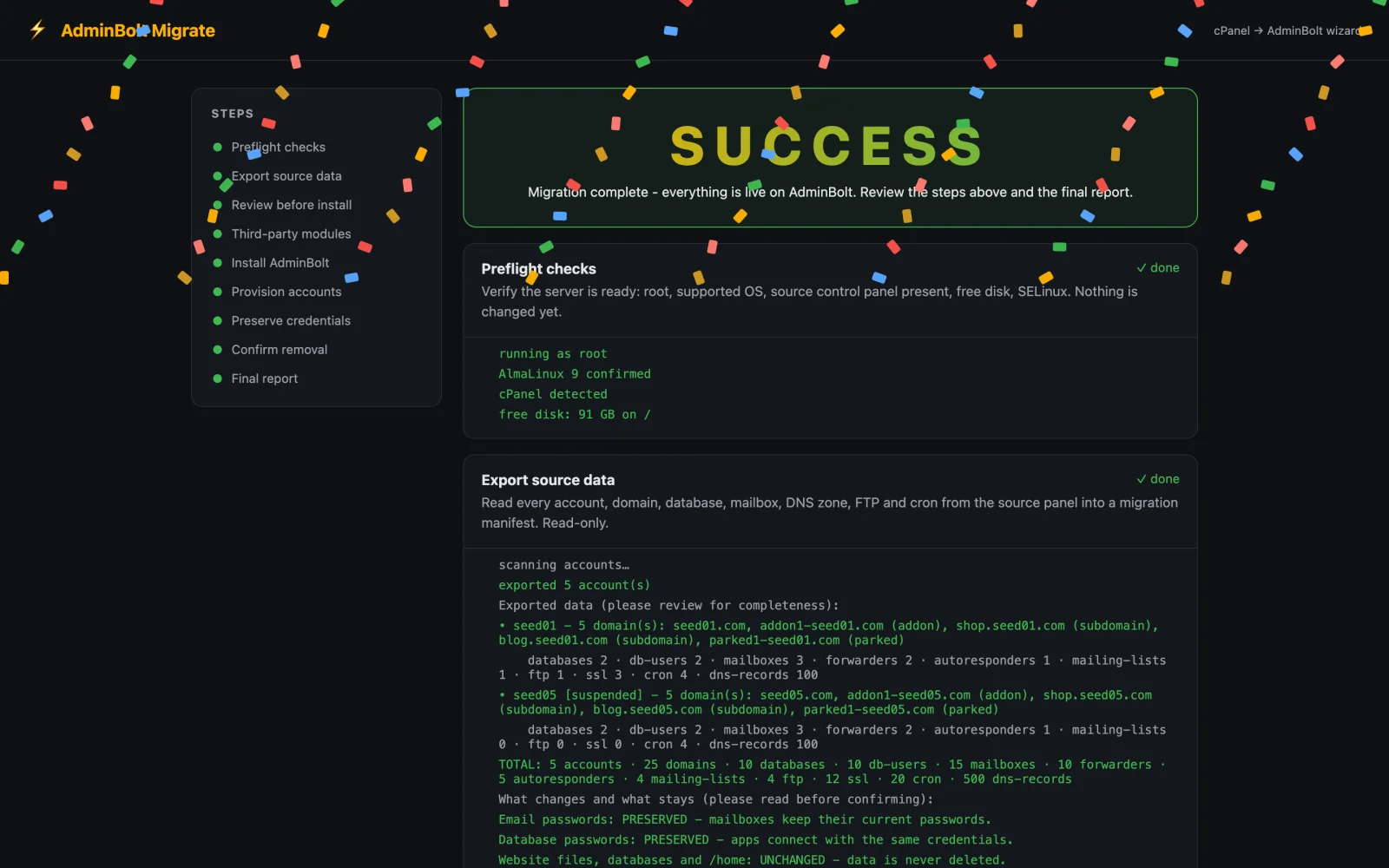
The confetti has rules: it does not appear after a rollback, an interruption or a run that finished with errors. Migrations should be boring; finishing one is allowed not to be.
If leaving your current panel is the project you keep postponing, our migration team will run it with you - free, planned around your schedule, with the cutover happening when you say go. And if you would rather hold the controls yourself, the self-service release of bolt-migrate is on its way: leave your address and you will hear about it the day it ships.