AdminBolt Is Now Available on Bluehost VPS
We are happy to announce that AdminBolt is now available directly on Bluehost Self-Managed VPS. Bluehost customers can select AdminBolt as an application when ordering a new VPS, or install it on a server they already run, without touching an installer script.
Bluehost has published its own documentation for the integration, so the panel is now a supported, first-class option on their platform rather than something you bolt on afterwards.
What This Means for You
There are two ways to get AdminBolt running on Bluehost, depending on whether you are starting fresh or already have a server.
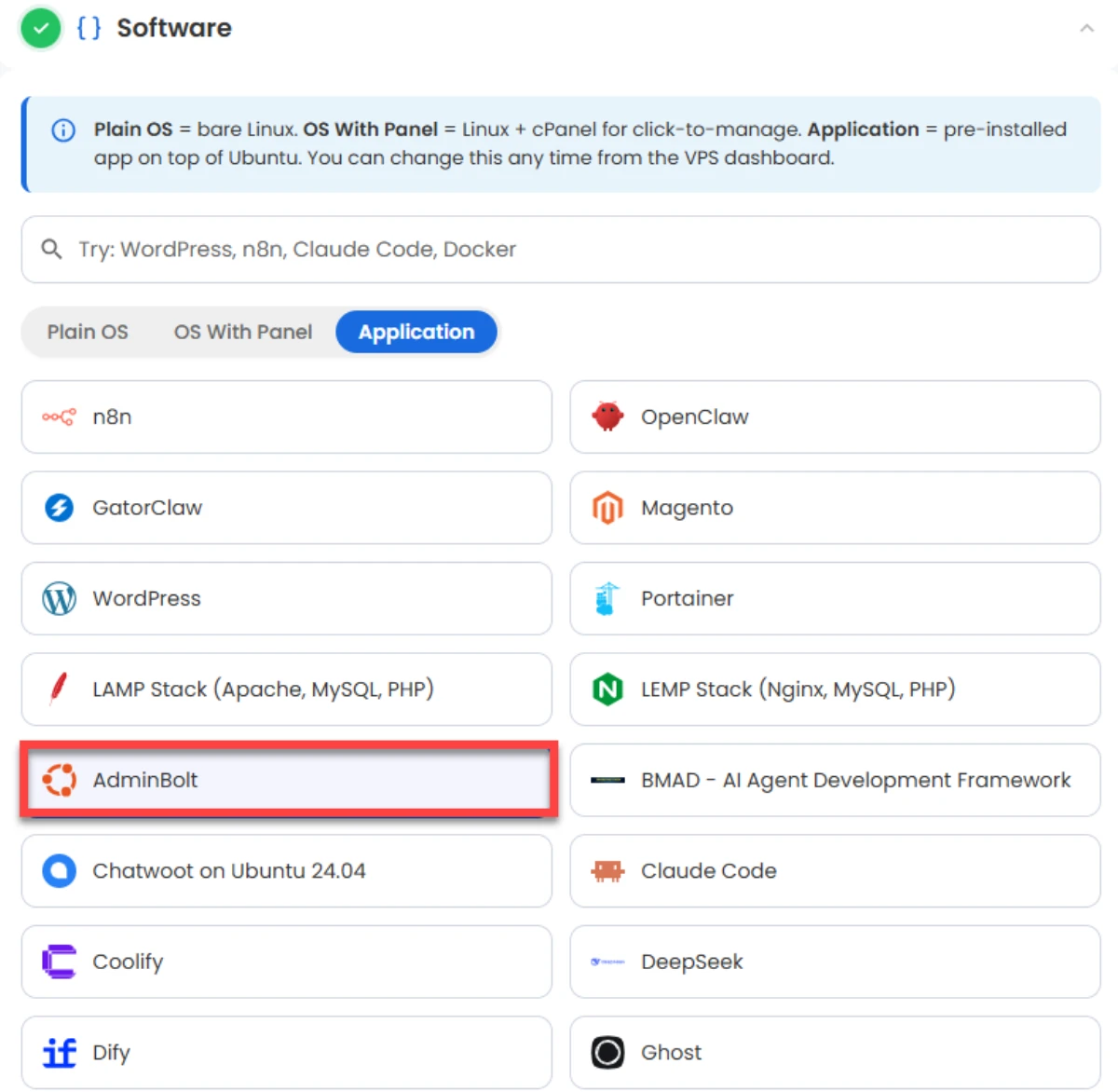
On a new VPS, AdminBolt appears during the ordering process. Pick your plan and data center, size the hardware, then open the Application tab in the Software section and select AdminBolt. Your server arrives with the panel already installed and ready to configure. Bluehost documents the full flow in Self-Managed VPS: AdminBolt.
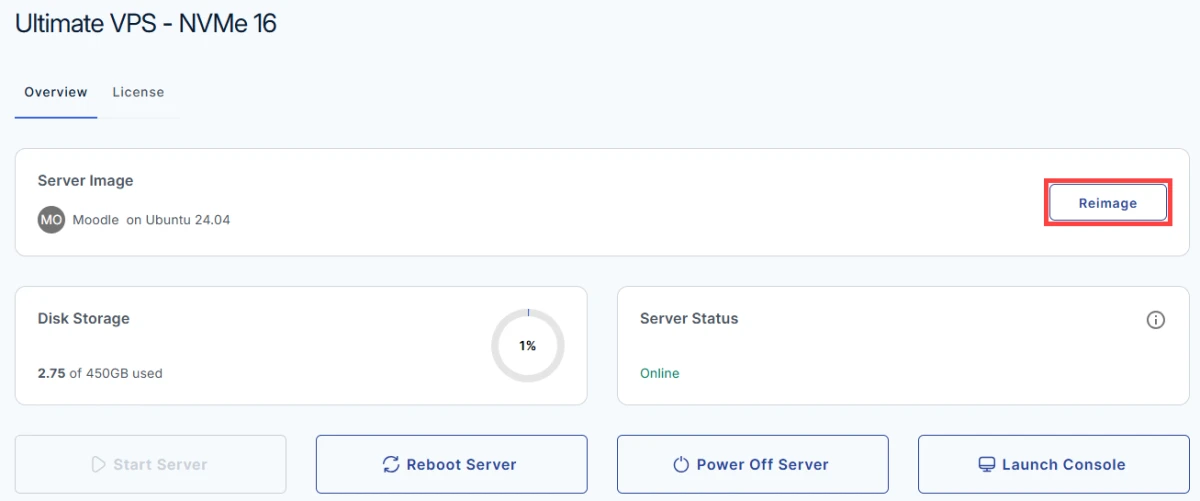
On an existing VPS, you can switch to AdminBolt by reimaging the server from the Bluehost Portal: go to Hosting, click Manage on your Self-Managed VPS, and choose Reimage.
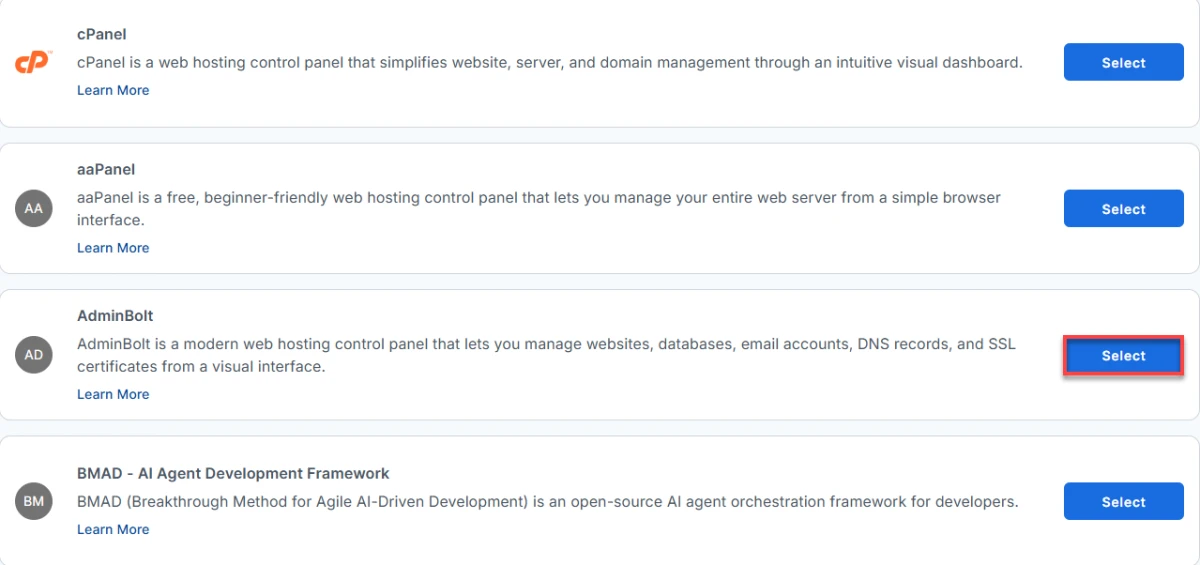
Then open the Applications tab and select AdminBolt from the list. The steps are covered in How to Install the AdminBolt Template.
One important warning on that second path: reimaging permanently erases everything on the VPS. Back up your data first, or install AdminBolt over SSH instead if you need to keep what is already there.
Sizing and First Login
AdminBolt on Bluehost needs at least 2 vCPUs, 4 GB of RAM, and 20 GB of disk. That is the floor for a working panel; if you plan to host a real client base, give it more room.
Once the install finishes, the panel lives at https://your-server-ip:8443. To get in the first time, SSH into the server and read the generated single sign-on link:
cat /root/.app_passwords
That link logs you straight into the panel. Before you rely on it day to day, create a permanent admin account:
bolt-cli create-admin-account
From there you have the full stack ready to go: Apache and MariaDB for sites, multi-PHP, Postfix and Dovecot with Roundcube webmail, Rspamd filtering, PowerDNS, automatic Let's Encrypt certificates, a built-in firewall, and Fail2ban.
Why It Matters
Bluehost is one of the largest hosting brands in the world, and its Self-Managed VPS line is aimed at exactly the people AdminBolt is built for: operators who want root on their own box without paying per account for the privilege of managing it.
That is the part worth repeating. AdminBolt is a flat monthly rate per server, not a per-account license. Host as many accounts and domains as the hardware will carry, and the panel bill does not move. Pair that with a Bluehost VPS and the cost of running a hosting business becomes something you can actually predict.
Get Started
Bluehost's overview of the panel is at What Is AdminBolt. Order a Self-Managed VPS, pick AdminBolt from the Application tab, and you will have a panel running in minutes.
Questions? Join us on Discord or visit the community forum.