How to Deploy AdminBolt on DigitalOcean: 1-Click Hosting Control Panel Droplet
AdminBolt is now a 1-Click app in the DigitalOcean Marketplace. You pick a region, pick a Droplet size and click Create. A few minutes later you have a working hosting control panel with the web server, PHP, databases, email and the security baseline already configured, without opening an SSH session to install anything.
DigitalOcean is the cloud people reach for when they want a console that stays out of the way, predictable monthly caps and 15 datacenters to choose from. The panel you put on top of it should work the same way: one flat price per server, real API automation and no installer to babysit. This tutorial walks through the whole deployment, click by click.
What you'll get when this is done
A DigitalOcean Droplet running AlmaLinux 9 with AdminBolt installed and ready to log into. Websites, domains, databases, email accounts and free SSL certificates are all managed from one web interface on port 8443. Every bundled package and its version is listed on the Marketplace page itself.
On the pricing side, a Basic Droplet with 2 vCPUs and 4 GB of RAM costs $24 per month. The AdminBolt VPS license is a flat $20 per month with unlimited accounts. That is $44 per month for a full hosting platform. DigitalOcean bills Droplets per second, so you can also spin one up for an hour, look around and destroy it for the price of a coffee.
Before you start
You need a DigitalOcean account with a payment method on file. That is it. The whole flow takes about five minutes from clicking Create Droplet to being logged into the panel.
Step 1: Open the AdminBolt listing
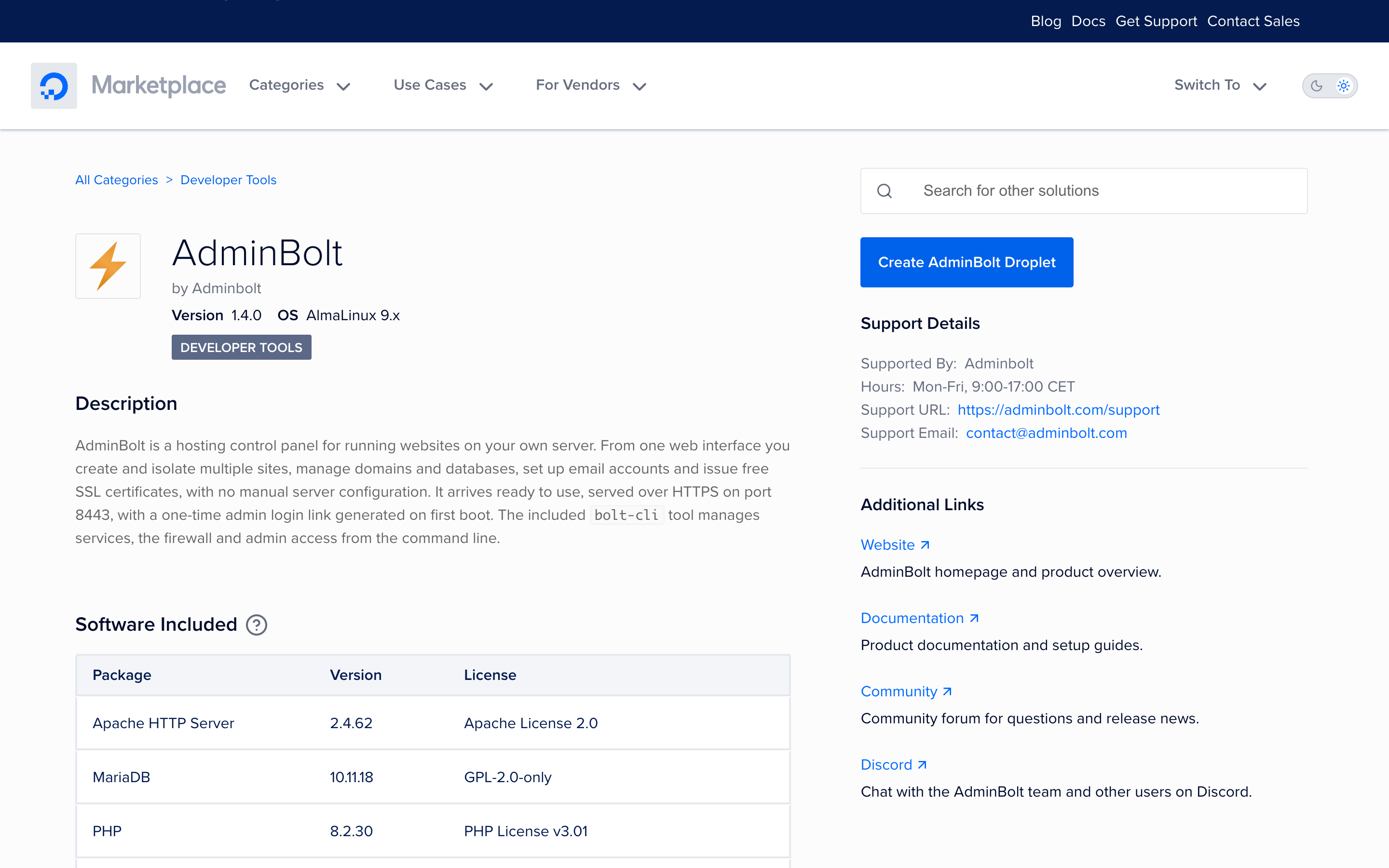
Go to marketplace.digitalocean.com/apps/adminbolt. The listing shows the app version, the operating system, the software inventory with licenses and the getting started instructions.
Click Create AdminBolt Droplet in the top right. It drops you straight into the Droplet creation wizard with the AdminBolt image already selected, so you skip hunting for it in the image picker.
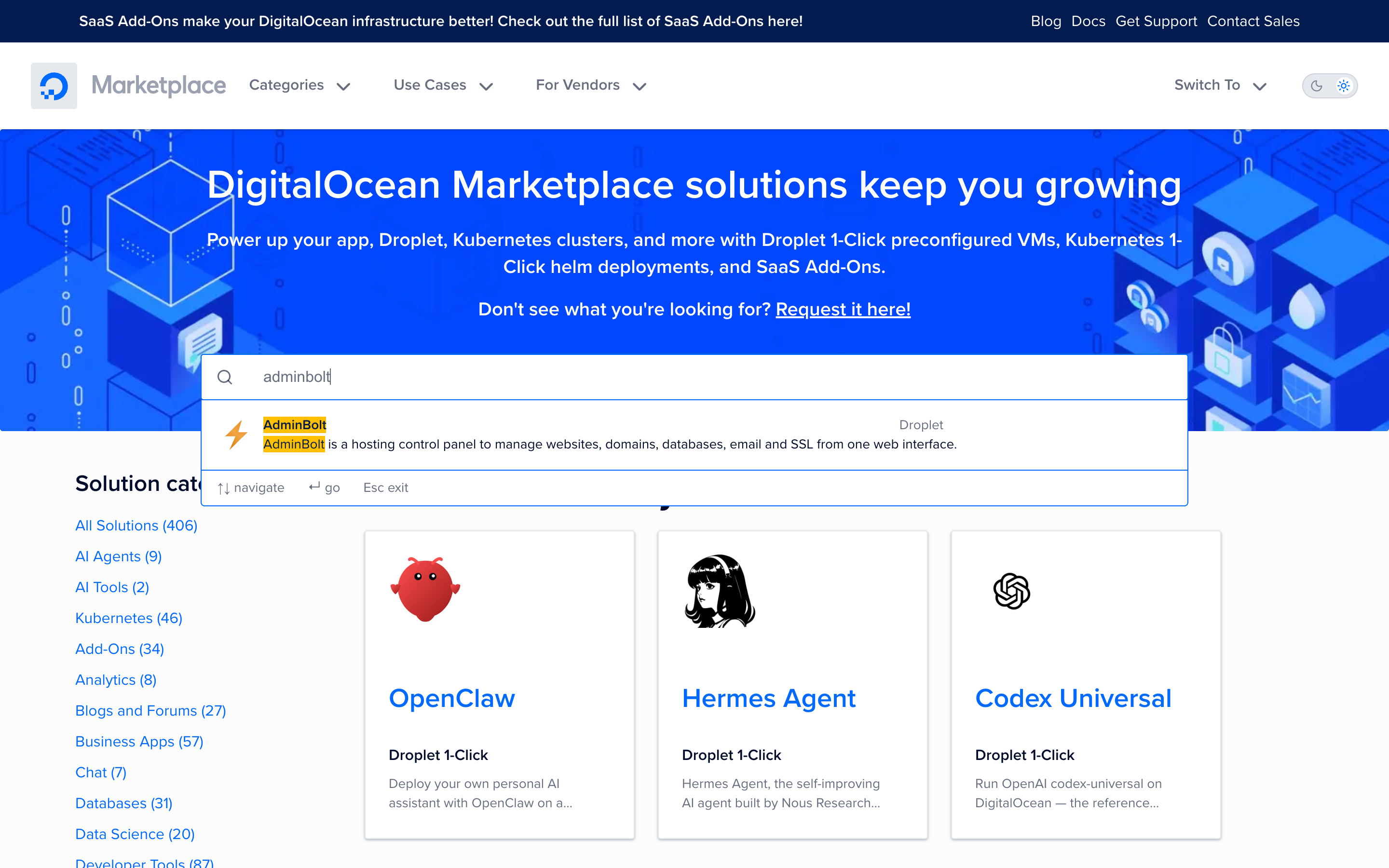
If you would rather start from the console, go to Create → Droplets, open the Solutions tab under Choose an image and search for adminbolt. The same search works from the Marketplace home page.
Step 2: Choose a region
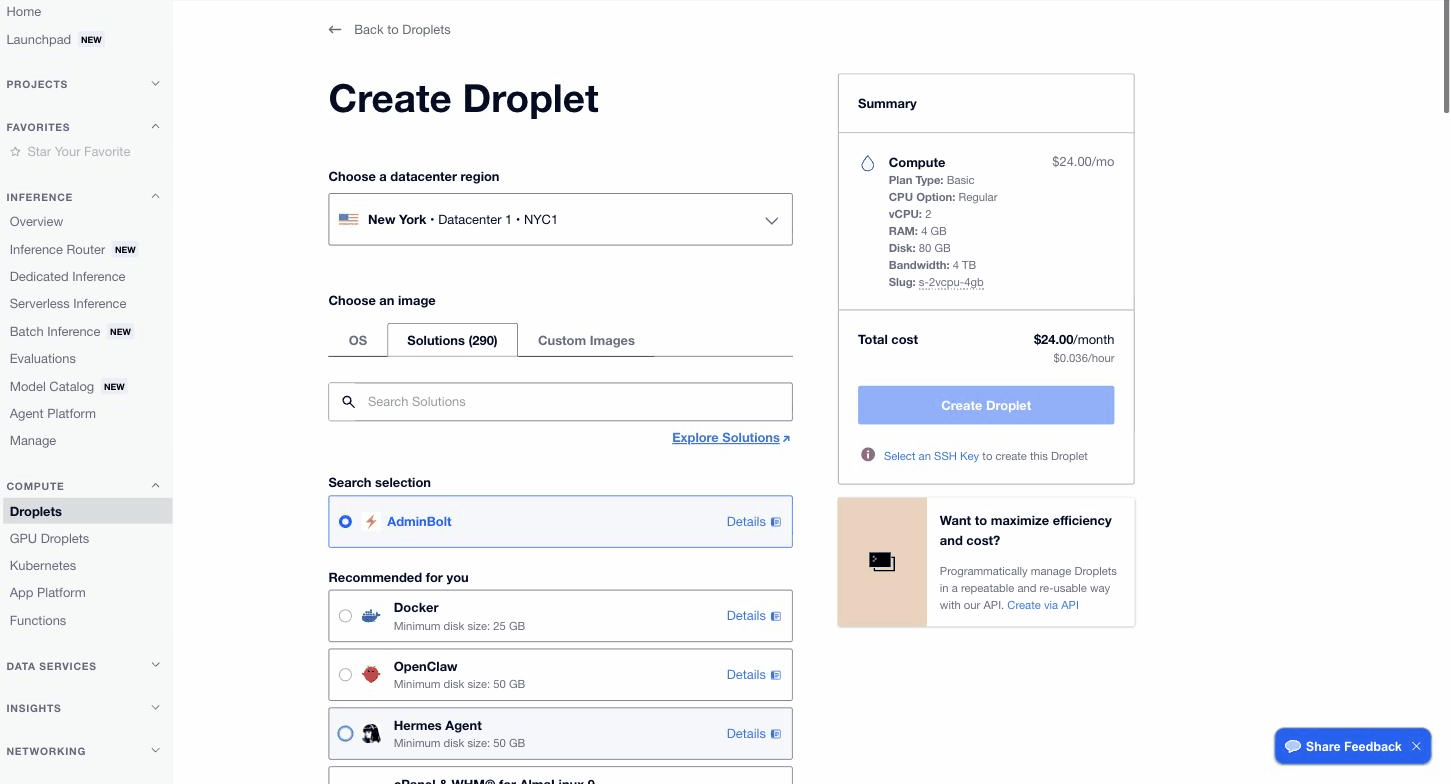
The wizard opens on Choose a datacenter region. DigitalOcean has 15 datacenters across 12 regions: New York, San Francisco, Atlanta, Richmond, Kansas City, Toronto, Amsterdam, London, Frankfurt, Bangalore, Singapore and Sydney.
Pick the one closest to the people your sites serve. Latency to the panel matters far less than latency to the websites it hosts, so optimise for your visitors, not for yourself.
Right below the region you will see Choose an image with the Solutions tab open and AdminBolt already selected under Search selection. Leave it alone. The Summary panel on the right should list adminbolt as the image for the rest of the flow.
Step 3: Choose the Droplet plan
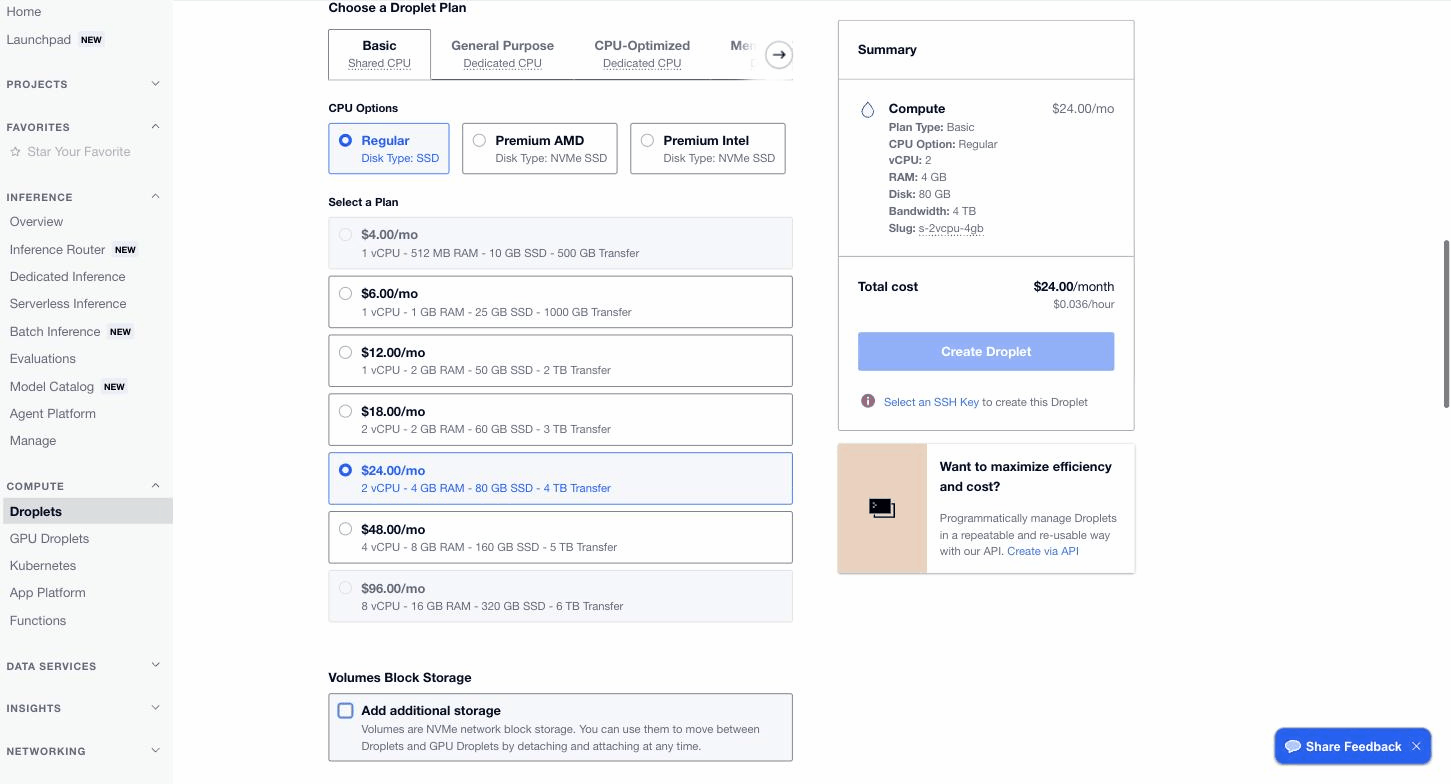
Scroll to Choose a Droplet Plan. Stay on the Basic tab (shared CPU) unless you already know you need dedicated cores, then pick a CPU option: Regular runs on SSD, Premium AMD and Premium Intel on NVMe SSD for a few dollars more. Premium plans are not offered in every datacenter. The wizard tells you when the combination you picked is unavailable in your region.
AdminBolt starts on 1 vCPU and 1 GB of RAM, which is enough to boot the panel, click through it and decide whether you like it. It is not enough for real traffic. For production the sweet spot is the $24 per month Regular plan: 2 vCPUs, 4 GB RAM, 80 GB SSD and 4 TB of transfer. It sits behind Show all plans, because the short list stops at $18.
Two useful reference points on the same list: 2 vCPUs with 2 GB of RAM is $18 per month. 4 vCPUs with 8 GB is $48.
Step 4: Set up authentication
Further down, the Authentication section has two tabs: SSH Keys and Password. You need shell access once, to read the panel login link on first boot, so do not skip this or leave the password somewhere you cannot find it.
An SSH key is the better option. DigitalOcean injects it at boot and you skip the root password entirely. Until you pick one, the Create Droplet button stays disabled and the Summary panel says so.
Step 5: Finalize and create
Give the Droplet a hostname you will recognise later, something like panel.yourdomain.example, add it to a project and click Create Droplet in the Summary panel on the right. That panel also shows the running total, $24.00 per month or $0.036 per hour for the plan above.
Provisioning takes about a minute. The first boot then configures the panel for this specific server, which adds another minute or two. Total wall clock time is typically three to five minutes before the panel answers.
Step 6: Log into AdminBolt
AdminBolt signs the first administrator in through a one time login link, so there is no default password to look up or change. Connect over SSH and read it:
ssh root@your_droplet_public_ipv4
cat /root/adminbolt-access.txt
Open the link in your browser and you land in the panel at https://your_droplet_public_ipv4:8443. If the link has already been used or you want a fresh one:
bolt-cli admin-sso-generate
Your browser will warn about the certificate on that first visit, because the panel is still answering on a bare IP address. That is expected and Step 7 fixes it.
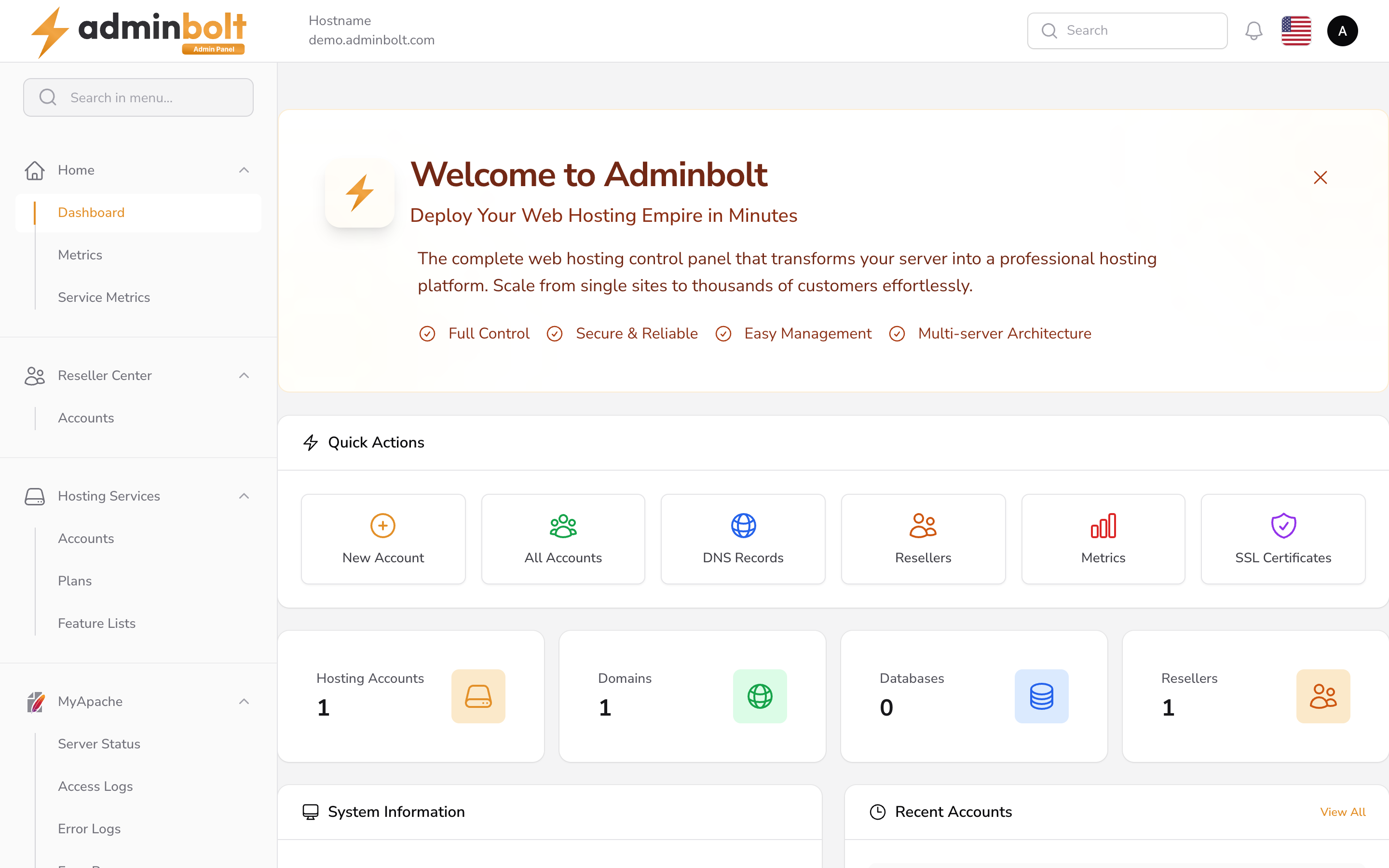
The dashboard is where the whole server lives: hosting accounts, resellers, DNS, SSL, metrics and the service status of everything running underneath.
Step 7: Point DNS and issue SSL
Create an A record for your panel hostname pointing at the Droplet IP, either at your registrar or in DigitalOcean's own DNS under Networking → Domains. Set the same hostname in the panel. AdminBolt then requests a free certificate for it. Within a minute or two the panel is reachable over HTTPS at a real name, with no browser warning.
Your customer sites get the same treatment: add a domain, point it at the Droplet and issue a certificate from the panel.
Deploying from the API instead
Everything above is also one API call, which matters if you provision servers from a script or a billing system rather than by hand. The image slug is adminbolt:
curl -X POST -H 'Content-Type: application/json' \
     -H "Authorization: Bearer $TOKEN" -d \
    '{"name":"panel-01","region":"nyc3","size":"s-2vcpu-4gb","image":"adminbolt"}' \
    "https://api.digitalocean.com/v2/droplets"
The same call works through doctl, Terraform or any of the DigitalOcean client libraries. AdminBolt itself has a REST API, so a new server can be created, configured and filled with accounts without anyone touching a web interface.
What's next: a short production checklist
The panel is live. A few things turn it from running into ready to host paying customers:
- Add your first domain. Mail authentication records are generated for you.
- Enable the PHP versions you need. Anything from 7.4 to 8.5 is one click each.
- Connect billing. If you invoice through WHMCS, the AdminBolt module ties account provisioning to your orders.
- Turn on backups. DigitalOcean snapshots protect the Droplet. AdminBolt's own backup module protects individual accounts. They solve different problems, so use both.
- Plan for the second server. AdminBolt manages multiple servers from one panel. The Marketplace flow above is identical for every server you add.
Why this matters for DigitalOcean customers
The reason AdminBolt fits here is that the two pricing models agree with each other. DigitalOcean charges for capacity: pick a size, pay for it by the second, resize when you outgrow it. AdminBolt charges one flat license per server, whether that server holds 10 accounts or 10,000.
Per account panel licensing works the other way around. On the same $24 Droplet, a few hundred accounts can cost more in license fees than the hardware they run on. The bill grows every time you sell a plan. Flat pricing keeps that line item still while your revenue moves.
Get started
The listing is at marketplace.digitalocean.com/apps/adminbolt and every new install starts with a 30 day free trial, no credit card needed. Configuration guides live at docs.adminbolt.com. The fastest way to get an answer from people running AdminBolt in production is Discord or the community forum.