Hosting Control Panel Backups: The Recovery Path
Almost every hosting business has backups. Every hosting control panel has a page for them. Far fewer have an answer to the second question, the one that matters at eight in the morning: who can put this back, how long will it take and what happens if the thing that needs restoring is the server itself.
Those are three different problems wearing one word. A customer who deleted a file needs an archive from Tuesday and needs it without opening a ticket. A support engineer who has to undo a bad database import needs to know that restoring will not quietly destroy the version they are restoring over. And an operator whose machine is gone needs something entirely different: a way to build a new box that is the old one, not a folder of files with no server to put them on.
This is how those three fit together in AdminBolt, what each of them costs you in setup time and where the usual plans have a hole in them.
The Short Answer
A complete backup story in a hosting panel has four layers. Most setups are missing at least one. Scheduled account backups to off-site storage cover your customers. On-demand archives cover a customer about to do something they are unsure of. Self-restore keeps that customer out of your ticket queue. Off-site server configuration snapshots cover the case nobody rehearses, which is losing the machine.
| Layer | Protects against | Who runs it | Where it lands |
|---|---|---|---|
| Scheduled account backups | Data loss, a bad deploy, a compromised site | Runs on a policy you set | Off-site storage you choose |
| On-demand file or database backup | The mistake the customer is about to make | The account owner, right now | Their own disk quota |
| Self-restore | Support load | The account owner, within limits you set | Back over their own account |
| Server configuration backup | Losing the whole server | Runs on a schedule, restored from the shell | Off-site, with its own key |
The layer that gets skipped is the last one. Account backups without a server backup mean that after a hardware failure you have every customer's data plus a blank machine, then the job of rebuilding the configuration that told the server what to do with it.
The Four Things That Go Wrong
A customer deletes something. The least dramatic of the four. They overwrote a template. They emptied the wrong folder. They ran an update that broke the theme. What they need is yesterday. What it costs you is a ticket unless they can do it themselves.
A database import goes wrong. Someone restores a dump into the wrong database, or imports a staging export over production. The damage is instant and total. The thing that decides whether it is recoverable is whether anything captured the current state before the import ran.
A site is compromised. Now the question is not just whether you have a backup but how far back your history goes, because the useful snapshot is the last one from before the compromise, which may be two weeks old. Retention is what decides this. Retention is a decision somebody made months earlier.
The server is gone. Hardware failure, a provider incident, or a mistake with a big blast radius. Every account backup you hold is still there and none of it helps until there is a server to restore onto. This is the one nobody has a plan for.
What You Get
- Backups that are configured once. A policy can apply to a hosting plan, a reseller, one account, or every account on the server as a default. An active server-wide default covers the accounts no more specific policy reaches, including those on a plan you add next year, unless backups are switched off for an account.
- Storage you choose. Off-site is the point, so the destinations are the ones a hosting business actually uses: S3 or any S3-compatible provider, SFTP, WebDAV including Nextcloud, a dedicated backup server, a local path, or a custom rclone configuration for anything the list does not name. Each has a connection test that tells you it works before you find out during an incident.
- Retention you can defend. Separate counts for daily, weekly and monthly snapshots, so "how far back can we go" has a real answer instead of a hopeful one.
- Customers who restore themselves. Per policy, account owners get restore actions on their own backups, within limits you set.
- Restores that do not burn the evidence. Restoring one of the archives a customer took themselves captures the current state first. So does putting a MariaDB dump from a scheduled snapshot back into its database. The walkthrough below says where a restore does overwrite.
- Whole accounts back, not only files. An administrator or a reseller can restore an account's files together with its mailboxes, databases, database users and grants in one job.
- A record of who asked. Every restore job records who started it, so a restore a customer ran is distinguishable from one you ran for them.
- A way back from losing the machine. The server's own configuration goes off-site on a schedule. The panel's command line rebuilds a fresh box from it.
How It Works From Where You Sit
Backups live in one area with six tabs, not six sidebar entries: Overview with every account's repository and its status, Runs, Restores, Destinations, Policies and Server Config. Each tab carries a count, so a queue building up or a run failing is visible without opening anything.
Set up a destination first. A policy cannot be saved without one. The create form asks for a name and a type, then the fields that type needs. Use Test connection before you attach anything to it: a wrong key discovered now costs a minute. The same wrong key discovered during the first run costs you the window you thought you were covered in.
One warning from the form is worth repeating here. A local path destination lives on the same machine as the data it protects. It is a fast copy, not a backup, because the disk that loses the data loses the copies with it. Keep at least one destination off the box.
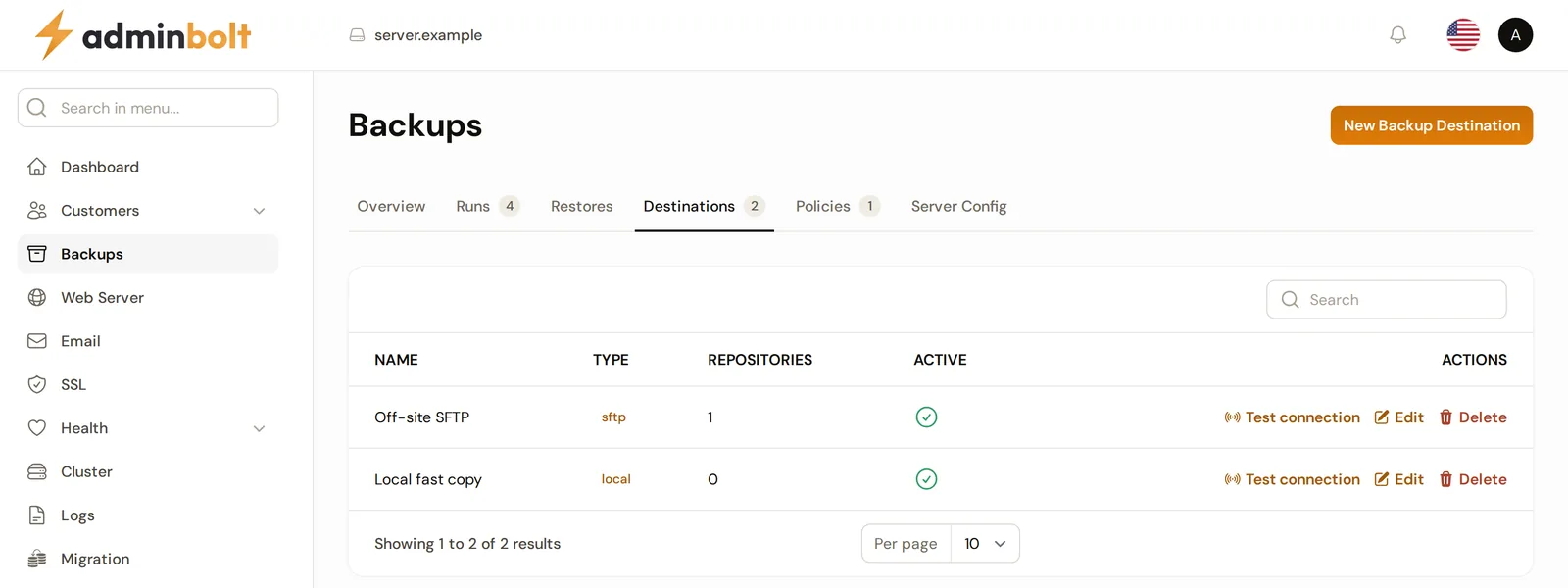
Then write a policy. The policy is where the actual decisions live: which accounts it applies to, where the snapshots go, how often, how much history is kept, whether the home directory or the databases or both are collected, whether account owners may restore for themselves and how much they may restore in one go.
Scope resolves from most specific to least: an account override wins over a reseller policy, which wins over a plan policy, which wins over the server-wide default. That last one is the safety net worth setting on day one. If a plan grants backups and no policy reaches some of its accounts, the Policies tab lists the plan and how many accounts are left out.
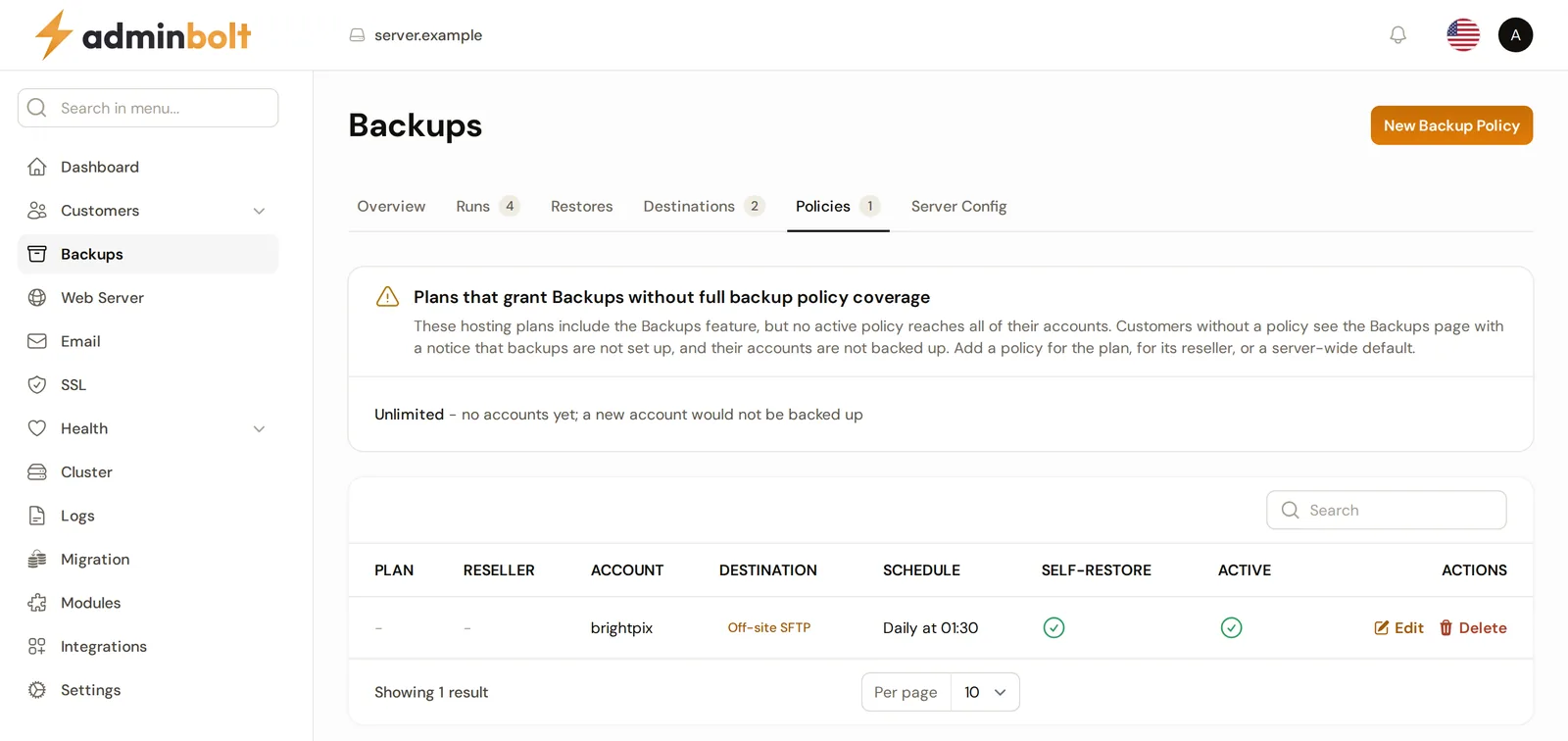
Then watch the first run. After that, runs start on their schedule and the Runs tab shows every one, finished or in flight. You do not have to keep checking: Overview warns when scheduled backups fall behind. An account whose backups keep failing raises a critical notification and shows up in Health until a backup of it succeeds again. Resellers get the same picture for the accounts they own, with Backup now and Restore per account, but no ability to change the policy you set.
An upload speed cap is there for the case where the backup window and the customer traffic share one uplink.
Letting Customers Restore Themselves
This is the layer with the clearest return, because it removes tickets instead of adding capability.
Two things sit under the customer's own control. Both are separate from the scheduled backups above. A domain's files can be archived on demand, from the panel, as a compressed copy of the domain folder. A database can be dumped on demand the same way. Both land in the account's own storage and count against its quota, which is the right trade: it is the customer's disk and the customer's decision.
These two protect the thing they are about to overwrite. A database restore dumps the current contents first, under a name that says it is the pre-restore copy and a folder restore archives the current folder first. The customer who restores the wrong on-demand archive has somewhere to go, which means you do too.
Restoring files from a scheduled snapshot is a different operation and it is worth knowing the difference before you write your own documentation. It runs in one of two modes. In place writes the files back over the live ones, with no safety copy taken first: files with the same names are overwritten, files created since the snapshot are left alone, so it is not a rollback of the whole account. Copy puts them in a restored-files folder in the home directory and leaves the live site untouched, which is the safe way to recover one file. Database dumps get their own choice. A dump can be copied into the home directory for somebody to inspect or import deliberately. A MariaDB dump can also be restored into the database it came from, in which case the database's current contents are saved first so an unwanted import can be undone.
On top of that, the scheduled backups themselves can be opened to the account owner, per policy. The customer's Backups page shows the state of their last backup, when the next one is due, how much history the retention keeps and the snapshots behind it. What the policy decides is whether they can restore from any of that. With self-restore on they browse a snapshot like a file tree, tick what they want back, restore a database or bring back a mailbox. With it off the restores go through you or their reseller. It is the same snapshot you would have restored from, reached without you.
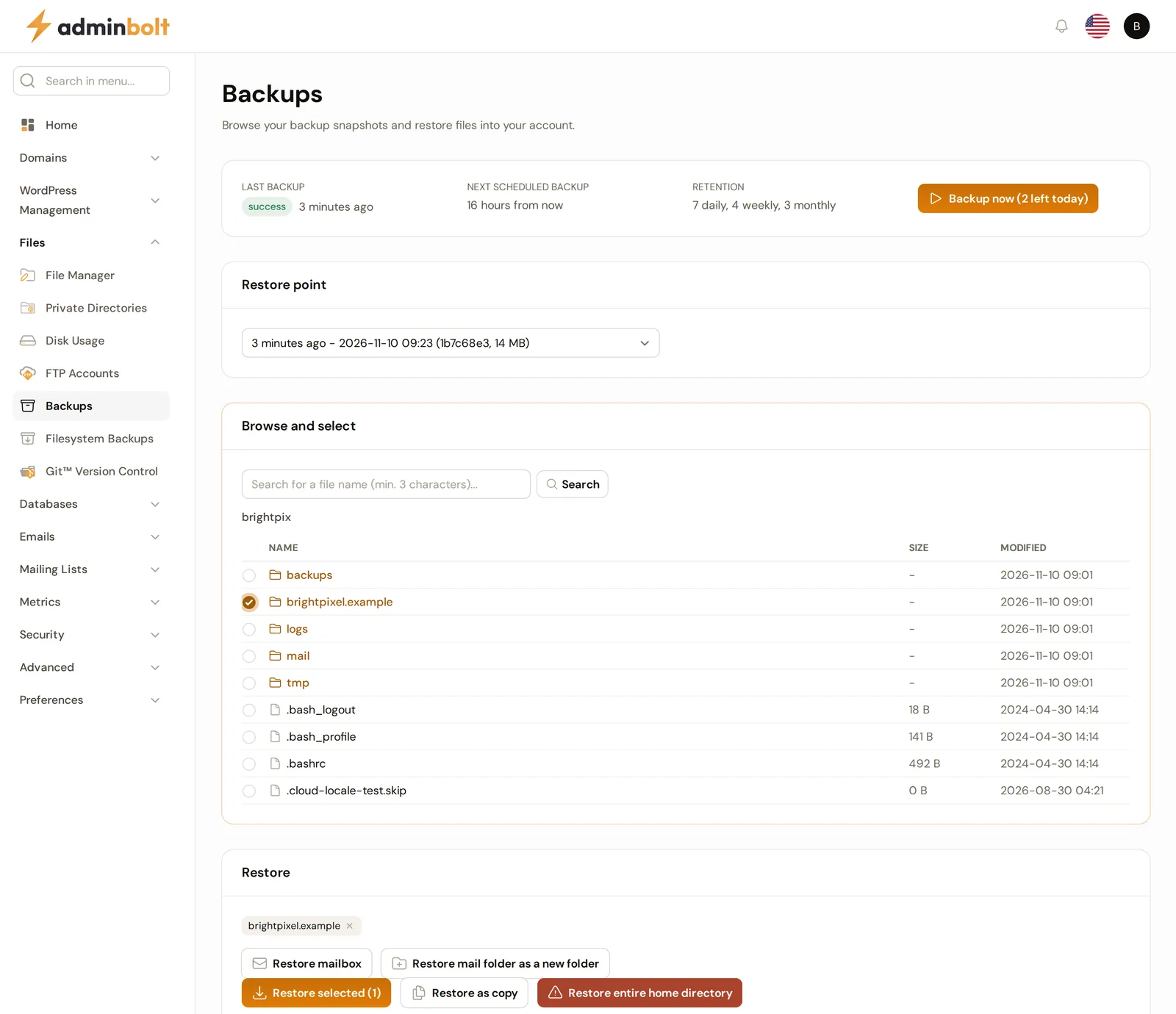
The limits are yours. Each policy decides whether self-restore is allowed at all and the largest restore an account may run. Under Limits on the Backups page you set, for the whole server, the waiting time between one client restore and the next and how many restores may run at once, because restores are heavy.
Worth being honest about the boundary: an on-demand domain archive holds files. It does not hold databases, mail or server configuration. Customers assume otherwise, so say it in your own documentation before they assume it during an incident.
Bringing Back a Whole Account
A deleted mailbox, a dropped database and a broken site are often one incident, not three. For that case the Restore action on an account offers Whole account (files, mailboxes, databases and users). It restores the home directory and recreates every mailbox, database, database user and grant the account is missing, with their original passwords, then imports the data of each database it recreated.
Existing mailboxes and databases are preserved. An existing mailbox keeps its mail and its password. An existing database is left out of the import, so for mail and databases the restore fills gaps without overwriting what survived. The home directory itself is restored from the snapshot. When it finishes, a report lists every object as recreated, left as it was, failed or not restored, with what to do about the last two.
Three limits are worth knowing before you rely on it. It needs a snapshot taken on panel 1.9.0 or later, because only those record what the account held. Some objects are not recreated automatically: PostgreSQL databases and users, which you recreate before restoring the dump, a mailbox on a separate mail server and remote MySQL hosts. The report names each of them with what to do. And it is an administrator and reseller tool; customers restore files, databases and mail from their own page instead. An account that was deleted outright leaves its backups behind. Restore to new account recreates it from them; keep the original username and the mailboxes and databases come back with the files, within the same limits.
The Layer Everyone Skips: Losing the Whole Server
Account backups protect your customers. They do not protect you.
If the machine is gone, what you have is data with nowhere to go. The hosting plans, the PHP versions, the modules you installed, the mail configuration, the DNS setup, the certificates: all of that was the server. Account backups bring accounts back onto a working server. They do not hold the server itself, so keep a server configuration backup as well as account backups.
The server's own configuration goes off-site to the same kind of destination the account backups use, on a schedule you set, with its own retention and an optional passphrase.
Export DR keys hands you the bootstrap secrets needed to rebuild the server somewhere else. The panel asks the administrator for a fresh second-factor code before it does. Every export is recorded. Treat what comes out like the master key it is: those secrets are enough to read your off-site backups, so they do not get stored next to them.
From those secrets alone, four operator commands do the rebuild:
| Command | What it does |
|---|---|
bolt-cli disaster-restore | Rebuilds a fresh machine from the newest off-site snapshot |
bolt-cli disaster-reprovision | Puts the modules, PHP versions and hosting accounts back |
bolt-cli restore-all-accounts | Restores the account files |
bolt-cli restore-all-databases | Imports their databases |
Every destructive restore asks you to type the name of the machine being overwritten as its confirmation. Each attempt is recorded.
Alongside those, the same page keeps fast local snapshots of the mail and DNS databases. They are the other tool entirely: not for surviving a lost machine but for undoing a change on a machine that is fine. A restore shows you the snapshot's age and its record counts before you commit, so you can see what you are going back to. A panel-driven system update takes one first. If that snapshot fails, the update stops; on a server that cannot take one at all, the update goes ahead with a warning.
Run through the rebuild once on a spare machine before you need it. It tells you how long a rebuild takes on your setup, which is the number your customers will ask for. It also tells you whether the keys you saved are the keys that work.
Where JetBackup and Acronis Fit
Some hosts already run JetBackup and have no wish to change. It installs as a module, the panel reports its service state and its licence, then launches into its own interface where the backup work happens.
The integration point worth knowing: when a JetBackup restore brings an account back, it replays the account's captured DNS zone with it, so the custom records come back too instead of being silently dropped. The replay is all or nothing and refuses before applying anything if the capture holds a record it cannot represent, which is the correct behaviour for DNS: a partial zone is worse than a refused one.
Hosts with an Acronis Cyber Protect Cloud account have a second option. The optional Acronis Backup module backs up the whole server into it and recovers anything from a recovery point, from one account's files, databases or mailboxes to the entire server. Resellers and clients restore their own accounts from the same backups. It has its own page under Backups > Acronis. A server can run it beside the panel's own backups, but the two read the same data and compete for disk, so keep their schedules apart.
One more source of data turns up after an incident: a cPanel account backup file a customer kept from an earlier host. Backup file import reads one account from such a file into a new or existing account, without contacting the old server. It shows a preview before anything is written. PostgreSQL databases are the exception and are moved by hand.
Common Mistakes
-
Retention set by storage cost alone. A compromise found two weeks late needs a snapshot from three weeks ago. Decide the number by how long a problem can hide, then price the storage, not the other way round.
-
Never testing a restore. Restore one account onto a test box this quarter. You will learn something, most often about how long it takes. Our note on testing a panel before you migrate to it applies here too.
-
Keeping the DR passphrase in the panel's own notes. It is not recoverable and it protects the snapshots. It belongs where your break-glass credentials live, not on the machine it protects.
FAQ
Can customers restore their own sites without a ticket?
Yes. It is a per-policy decision. When self-restore is on, the account owner restores from the same snapshots you would use, up to the maximum restore size on the policy and with the waiting time between restores you set for the server. With it off, only you and the reseller can restore.
What happens if the whole server is lost?
You rebuild it from the server configuration backup with the exported DR keys, as described above. The Acronis module, where you use it, is the other route.
How far back do backups go?
As far as retention says. Daily, weekly and monthly counts are set separately per policy, so you can keep a fortnight of dailies and a year of monthlies without paying to keep a year of dailies. Old snapshots are cleared off-peak, so a retention change is not reflected in stored size immediately.
Who can see who started a restore?
The Restores tab. Every restore records who asked for it: a restore an account owner started is attributed to that account. One an administrator started while impersonating the account names both.
Can resellers manage backups for their own accounts?
They can see the backup state of every account they own, start a backup and start a restore. They cannot change the schedule, the destination or the retention, because those come from the policy you set. An account of theirs with no destination is not covered by any policy, which is a signal to you and not something they can fix.
Do I have to use the built-in backups if I already run JetBackup?
No. JetBackup installs as a module and keeps its own interface. The panel's built-in backups can stay off.
Summary
Backups in a hosting panel are four jobs, not one. The server's own configuration off-site is the one worth checking today, because it is invisible until the day it is the only thing that matters.
If you want to see the whole path on your own hardware, adminbolt.com runs a 30-day trial with no card required. The backup documentation walks through the tabs and what each one holds. If you would rather compare notes with people running this at scale, they are on the community forum. For the wider picture of running many servers at once, our guide to multi-server hosting management covers where backups sit among the rest of it. If you are moving in from another panel, what happens to your data when a licence ends is the companion piece.